 Setup NotebookLM API (Gemini Notebook)
September 29, 2026 (October 6, 2026)
Table of contents
- Automated setup (recommended)
- Use a dedicated Gmail account
- If Google asks for a phone number
- Manual setup
- If Google signs the account out
- Usage limits
Approximately 5 minutes to complete setup steps.
This is the setup guide for Gemini Notebook API. A Google account and a useapi.net subscription are required for the API to work. Gemini Notebook (formerly NotebookLM) works on the free Google plan, and paid Google AI plans raise its usage limits.
Automated setup (recommended)
Use our guided browser setup to connect your account automatically — no DevTools or cookie copying needed. Enter your API token, sign in with Google in the remote browser, and your account is verified and added.
Prefer manual setup? Continue with the steps below.
Use a dedicated Gmail account
Use a dedicated Gmail account for this API — do NOT use your personal Gmail account.
 Use a dedicated Gmail account for this API — do NOT use your personal Gmail account.
When creating a new account:
- Enable 2-Step Verification with Microsoft Authenticator, and save the backup codes. Avoid Google Authenticator — it backs its codes up to the Google account it is signed into, which would link this dedicated account to your personal one.
- Keep your sign-ins consistent. If you use a VPN, pick one region and stay with it rather than switching locations — an account that appears from different places in a short time is what Google treats as suspicious. The automated setup above signs in from a US browser, so it needs no VPN on your side.
If Google asks for a phone number
Occasionally Google shows a “Verify it’s you” page and asks for a phone number to text a code to, even on an account that never had one. Any number that can receive SMS works. It does not have to be one already on the account.
If you’d rather not use your personal number, get an inexpensive prepaid line just for this — for example a Tello eSIM on its cheapest plan with texts (about $5/month, activated online). Install it on any phone, receive the code there, and keep the line active so you can pass future checks.
Avoid online SMS-rental and “free virtual number” services. Google rejects most of them, and a rejected number can make the lock harder to clear.
Manual setup
Do NOT use Google Chrome. Google’s integration with Chrome interferes with cookie extraction. Use Brave or Ungoogled Chromium instead.
You copy two sets of cookies from Developer Tools and paste both into the same cookies field: the https://notebook.google.com set and the https://accounts.google.com set. The account is refused with only one of them.
Start a clean browser with the setup script (recommended)
Our Google Account Setup scripts for Windows, macOS and Linux give you a clean, single-use Google sign-in. They open Brave in a brand-new, empty profile, wait while you sign in and copy the cookies, and delete that profile the moment you close the browser. That takes care of three things:
- A fresh, empty profile, with no other Google accounts, history or extensions. It runs separately from your normal Brave, which can stay open.
- No device-bound sessions. Brave starts with
--disable-features=EnableBoundSessionCredentials,DeviceBoundSessions, so the cookies also work outside your computer. - The profile is deleted when you close the browser. That sign-in can never be opened in a browser again, so only the API uses it.
The scripts read nothing and send nothing — you copy the cookies by hand, exactly as in the manual steps below. Each script is short, so read it before you run it.
- Install Brave (on Linux, Chromium works too).
- Get the script for your system from the sections below: copy it into a file, or download it from GitHub.
- Run it and choose Gemini Notebook from the menu.
- In the Brave window, sign in to your dedicated Google account, copy the cookies named above (the script names them too), and paste them into the form on this page.
- When the account shows as added, close every window of that Brave (on a Mac, quit it with
Cmd+Q). Keep the script’s window open until it reports the profile was deleted, and do not sign in to the same Google account in any other browser afterwards.
Windows — install script
Download it from GitHub, or open Notepad, paste the script below, and save it as google-account-setup-windows.cmd (in the Save dialog set Save as type to All Files so it is not saved as .txt). Double-click the saved file. If Windows shows Windows protected your PC, click More info then Run anyway.
@echo off
rem useapi.net - clean Google sign-in for the API (Windows). Double-click to run.
rem Opens Brave in a brand-new, empty profile at Google Flow, Gemini Notebook or Google Vids (a menu asks unless the first
rem argument says: flow, notebook, vids or a URL). You sign in and copy
rem the cookies by hand as the setup page shows. When Brave closes, this script deletes the whole profile, so that sign-in
rem is never used by a browser again and the cookies the API holds stay valid.
rem If Windows warns before running it: on "Windows protected your PC" click More info, then Run anyway;
rem on "Open File - Security Warning" click Run. Or first: right-click the file, Properties, tick Unblock, OK.
setlocal
set "URL=%~1"

echo.
echo ==================================================================
echo   useapi.net - clean Google sign-in for the API
echo ==================================================================
echo.
echo Why this is needed:
echo   The API works with your Google account's session cookies. They work best when
echo   no browser keeps using the same sign-in (for Google Vids this is required: a
echo   browser that keeps using it breaks the API's copy within minutes). This script
echo   gives you a sign-in that only the API will ever use:
echo    - a brand-new, empty Brave profile (no other accounts, history or extensions);
echo    - device-bound sessions switched off, so the cookies work outside this PC;
echo    - the profile is deleted when you close Brave, so this sign-in can never be
echo      opened in a browser again.
echo   Nothing is read or sent by this script: you copy the cookies yourself.

rem Which service: first argument (flow, notebook, vids or a URL), otherwise a menu
if /i "%URL%"=="flow" set "URL=https://flow.google.com"
if /i "%URL%"=="notebook" set "URL=https://notebook.google.com"
if /i "%URL%"=="vids" set "URL=https://docs.google.com/videos"
if not "%URL%"=="" goto haveurl
echo.
echo ==^> Which service are you setting up?
echo     1 - Google Flow
echo     2 - Gemini Notebook (NotebookLM)
echo     3 - Google Vids
echo     4 - Enter my own URL
set "CHOICE="
set /p "CHOICE=Enter 1, 2, 3 or 4: "
if "%CHOICE%"=="1" set "URL=https://flow.google.com"
if "%CHOICE%"=="2" set "URL=https://notebook.google.com"
if "%CHOICE%"=="3" set "URL=https://docs.google.com/videos"
if "%CHOICE%"=="4" (
    set /p "URL=    URL: "
    if not defined URL goto nourl
)
if "%URL%"=="" goto badchoice
:haveurl
set "COPY=the cookies the setup page lists"
echo "%URL%"| find /i "flow.google.com" >nul && set "COPY=the https://accounts.google.com cookies"
echo "%URL%"| find /i "notebook.google.com" >nul && set "COPY=the https://notebook.google.com AND the https://accounts.google.com cookies"
echo "%URL%"| find /i "docs.google.com" >nul && set "COPY=the https://docs.google.com cookies"

echo.
echo ==^> Looking for Brave
set "B=%ProgramFiles%\BraveSoftware\Brave-Browser\Application\brave.exe"
if not exist "%B%" set "B=%ProgramFiles(x86)%\BraveSoftware\Brave-Browser\Application\brave.exe"
if not exist "%B%" set "B=%LocalAppData%\BraveSoftware\Brave-Browser\Application\brave.exe"
if not exist "%B%" goto nobrave
echo     Found: "%B%"

echo.
echo ==^> Creating a temporary, empty browser profile
set "P=%TEMP%\useapi-google-setup-%RANDOM%%RANDOM%"
mkdir "%P%"
echo     Profile folder: "%P%"
echo     It holds this sign-in only and is deleted at the end.

echo.
echo ==^> Starting Brave with the clean profile
echo     Page: "%URL%"
echo     Switches:
echo       --user-data-dir=[profile above]  use the empty profile, separate from your normal Brave
echo       --disable-features=EnableBoundSessionCredentials,DeviceBoundSessions
echo                                        do not bind the sign-in to this PC (bound cookies are refused by the API)
echo       --no-first-run --no-default-browser-check   skip Brave's welcome screens

echo.
echo ==^> Now, in the Brave window:
echo     1. Sign in to your dedicated Google account.
echo     2. Open Developer Tools (F12) ^> Application ^> Cookies, copy %COPY%
echo        and paste them into the useapi.net setup form, as the setup page shows.
echo     3. When the form shows the account as added, CLOSE every window of this Brave.
echo     Keep this window open: it deletes the profile once Brave has closed.
echo     Waiting for Brave to close...

start "" /wait "%B%" --user-data-dir="%P%" --no-first-run --no-default-browser-check --disable-features=EnableBoundSessionCredentials,DeviceBoundSessions "%URL%"
echo     Brave has closed.

echo.
echo ==^> Deleting the temporary profile
echo     "%P%"
rem Brave's helper processes can keep files open for a moment after it closes: retry the delete for up to ~20 s
for /l %%i in (1,1,10) do (
    if exist "%P%" (
        rmdir /s /q "%P%" 2>nul
        if exist "%P%" (
            echo     Brave is still closing, retrying in 2 s [%%i/10]
            timeout /t 2 /nobreak >nul
        )
    )
)
set "RC=0"
if exist "%P%" (
    set "RC=1"
    echo     Could not delete it. Close every Brave window opened by this setup, then delete that folder by hand.
) else (
    echo     Deleted. This sign-in can no longer be opened in a browser; only the API uses it now.
    echo     Do not sign in to this Google account in any other browser either.
)
echo.
pause
exit /b %RC%

:badchoice
echo     Unknown choice. Run this file again and enter 1, 2, 3 or 4.
echo.
pause
exit /b 1

:nourl
echo     No URL entered. Run this file again.
echo.
pause
exit /b 1

:nobrave
echo     Brave was not found in Program Files or AppData.
echo     Install it from https://brave.com and run this file again.
echo.
pause
exit /b 1
macOS — install script
Download it from GitHub and run it with bash ~/Downloads/google-account-setup-mac.command, or open Terminal (Applications → Utilities), paste the script below into a file with nano ~/google-account-setup-mac.command, press Ctrl+O then Enter to save and Ctrl+X to exit, then run it with bash ~/google-account-setup-mac.command.
#!/bin/bash
# useapi.net — clean Google sign-in for the API (macOS). Double-click in Finder, or run from Terminal.
# Opens Brave in a brand-new, empty profile at Google Flow, Gemini Notebook or Google Vids (a menu asks unless the first
# argument says: flow | notebook | vids | <url>). You sign in and copy
# the cookies by hand as the setup page shows. When Brave quits, this script deletes the whole profile, so that sign-in is
# never used by a browser again and the cookies the API holds stay valid.
# If a double-click will not open it (a downloaded file loses its run permission and macOS blocks files from the internet),
# open Terminal and run:  bash ~/Downloads/google-account-setup-mac.command
# If macOS only warns that it cannot verify the file: right-click > Open, or (macOS 15 and later) System Settings >
# Privacy & Security > Open Anyway.
step() { echo; echo "==> $*"; }
info() { echo "    $*"; }

echo
echo "=================================================================="
echo "  useapi.net - clean Google sign-in for the API"
echo "=================================================================="
echo
echo "Why this is needed:"
echo "  The API works with your Google account's session cookies. They work best when"
echo "  no browser keeps using the same sign-in (for Google Vids this is required: a"
echo "  browser that keeps using it breaks the API's copy within minutes). This script"
echo "  gives you a sign-in that only the API will ever use:"
echo "   - a brand-new, empty Brave profile (no other accounts, history or extensions);"
echo "   - device-bound sessions switched off, so the cookies work outside this Mac;"
echo "   - the profile is deleted when you quit Brave, so this sign-in can never be"
echo "     opened in a browser again."
echo "  Nothing is read or sent by this script: you copy the cookies yourself."

# Which service: first argument (flow | notebook | vids | a URL), otherwise a menu
URL="$1"
case "$URL" in
  flow) URL=https://flow.google.com ;;
  notebook) URL=https://notebook.google.com ;;
  vids) URL=https://docs.google.com/videos ;;
esac
if [ -z "$URL" ]; then
  step "Which service are you setting up?"
  info "1) Google Flow"
  info "2) Gemini Notebook (NotebookLM)"
  info "3) Google Vids"
  info "4) Enter my own URL"
  read -r -p "    Enter 1, 2, 3 or 4: " CHOICE
  case "$CHOICE" in
    1) URL=https://flow.google.com ;;
    2) URL=https://notebook.google.com ;;
    3) URL=https://docs.google.com/videos ;;
    4) read -r -p "    URL: " URL ;;
    *) info "Unknown choice '$CHOICE'. Run this file again."; exit 1 ;;
  esac
  [ -z "$URL" ] && { info "No URL entered. Run this file again."; exit 1; }
fi
case "$URL" in
  *flow.google.com*) COPY="the https://accounts.google.com cookies" ;;
  *notebook.google.com*) COPY="the https://notebook.google.com AND the https://accounts.google.com cookies" ;;
  *docs.google.com*) COPY="the https://docs.google.com cookies" ;;
  *) COPY="the cookies the setup page lists" ;;
esac

step "Looking for Brave"
BRAVE="/Applications/Brave Browser.app/Contents/MacOS/Brave Browser"
[ -x "$BRAVE" ] || BRAVE="$HOME/Applications/Brave Browser.app/Contents/MacOS/Brave Browser"
if [ ! -x "$BRAVE" ]; then
  info "Brave was not found in /Applications or ~/Applications."
  info "Install it from https://brave.com and run this file again."
  exit 1
fi
info "Found: $BRAVE"

step "Creating a temporary, empty browser profile"
PROFILE="$(mktemp -d "${TMPDIR:-/tmp}/useapi-google-setup.XXXXXX")"
# Never start Brave without the new folder: an empty --user-data-dir would open the normal Brave profile instead
if [ -z "$PROFILE" ] || [ ! -d "$PROFILE" ]; then
  info "Could not create a temporary folder in ${TMPDIR:-/tmp}."
  exit 1
fi
info "Profile folder: $PROFILE"
info "It holds this sign-in only and is deleted at the end."

# Brave's helper processes can keep writing for a moment after it quits: retry the delete for up to ~20 s
cleanup() {
  step "Deleting the temporary profile"
  info "$PROFILE"
  for i in 1 2 3 4 5 6 7 8 9 10; do
    rm -rf "$PROFILE" 2>/dev/null
    if [ ! -d "$PROFILE" ]; then
      info "Deleted. This sign-in can no longer be opened in a browser; only the API uses it now."
      info "Do not sign in to this Google account in any other browser either."
      echo
      return
    fi
    info "Brave is still closing, retrying in 2 s ($i/10)"
    sleep 2
  done
  info "Could not delete it. Quit every Brave window opened by this setup, then delete that folder by hand."
  echo
  exit 1
}
trap cleanup EXIT

step "Starting Brave with the clean profile"
info "Page: $URL"
info "Switches:"
info "  --user-data-dir=<profile above>   use the empty profile, separate from your normal Brave"
info "  --disable-features=EnableBoundSessionCredentials,DeviceBoundSessions"
info "                                    do not bind the sign-in to this device (bound cookies are refused by the API)"
info "  --no-first-run --no-default-browser-check   skip Brave's welcome screens"

step "Now, in the Brave window:"
info "1. Sign in to your dedicated Google account."
info "2. Open Developer Tools (F12) > Application > Cookies, copy $COPY"
info "   and paste them into the useapi.net setup form, as the setup page shows."
info "3. When the form shows the account as added, QUIT this Brave: click its window, then Cmd+Q (closing the window is not enough)."
info "Keep this window open: it deletes the profile once Brave has quit."
info "Waiting for Brave to quit..."

# Runs in the foreground until this Brave instance quits (a separate profile = a separate Brave, even if one is open)
"$BRAVE" --user-data-dir="$PROFILE" --no-first-run --no-default-browser-check \
  --disable-features=EnableBoundSessionCredentials,DeviceBoundSessions "$URL" >/dev/null 2>&1
info "Brave has quit."
Linux / WSL — install script
Download it from GitHub, or save the script below to ~/google-account-setup-linux.sh (for example with nano ~/google-account-setup-linux.sh), then run it with bash ~/google-account-setup-linux.sh. On WSL this needs Windows 11 (WSLg) for the browser window — otherwise run the Windows script instead.
#!/bin/bash
# useapi.net — clean Google sign-in for the API (Linux: Ubuntu and other desktops, and WSL with WSLg on Windows 11).
# Run: bash google-account-setup-linux.sh [flow | notebook | vids | <url>]
# Opens Brave (deb, snap or flatpak; Ungoogled Chromium / Chromium as a fallback) in a brand-new, empty profile at Google
# Flow, Gemini Notebook or Google Vids (a menu asks unless the argument says). You sign in and copy the cookies by hand
# as the setup page shows. When the browser closes, this script deletes the whole profile, so that sign-in is never
# used by a browser again and the cookies the API holds stay valid. On WSL you can also simply run the Windows version (google-account-setup-windows.cmd).
step() { echo; echo "==> $*"; }
info() { echo "    $*"; }

echo
echo "=================================================================="
echo "  useapi.net - clean Google sign-in for the API"
echo "=================================================================="
echo
echo "Why this is needed:"
echo "  The API works with your Google account's session cookies. They work best when"
echo "  no browser keeps using the same sign-in (for Google Vids this is required: a"
echo "  browser that keeps using it breaks the API's copy within minutes). This script"
echo "  gives you a sign-in that only the API will ever use:"
echo "   - a brand-new, empty browser profile (no other accounts, history or extensions);"
echo "   - device-bound sessions switched off, so the cookies work outside this computer;"
echo "   - the profile is deleted when you close the browser, so this sign-in can never be"
echo "     opened in a browser again."
echo "  Nothing is read or sent by this script: you copy the cookies yourself."

# Which service: first argument (flow | notebook | vids | a URL), otherwise a menu
URL="$1"
case "$URL" in
  flow) URL=https://flow.google.com ;;
  notebook) URL=https://notebook.google.com ;;
  vids) URL=https://docs.google.com/videos ;;
esac
if [ -z "$URL" ]; then
  step "Which service are you setting up?"
  info "1) Google Flow"
  info "2) Gemini Notebook (NotebookLM)"
  info "3) Google Vids"
  info "4) Enter my own URL"
  read -r -p "    Enter 1, 2, 3 or 4: " CHOICE
  case "$CHOICE" in
    1) URL=https://flow.google.com ;;
    2) URL=https://notebook.google.com ;;
    3) URL=https://docs.google.com/videos ;;
    4) read -r -p "    URL: " URL ;;
    *) info "Unknown choice '$CHOICE'. Run this file again."; exit 1 ;;
  esac
  [ -z "$URL" ] && { info "No URL entered. Run this file again."; exit 1; }
fi
case "$URL" in
  *flow.google.com*) COPY="the https://accounts.google.com cookies" ;;
  *notebook.google.com*) COPY="the https://notebook.google.com AND the https://accounts.google.com cookies" ;;
  *docs.google.com*) COPY="the https://docs.google.com cookies" ;;
  *) COPY="the cookies the setup page lists" ;;
esac

step "Looking for Brave"
# Snap and flatpak browsers are sandboxed: they cannot see /tmp, so their profile goes under the home folder
BROWSER=() SANDBOXED=""
for b in /usr/bin/brave-browser /opt/brave.com/brave/brave-browser; do
  [ -x "$b" ] && { BROWSER=("$b"); break; }
done
if [ ${#BROWSER[@]} -eq 0 ] && [ -x /snap/bin/brave ]; then BROWSER=(/snap/bin/brave); SANDBOXED=snap; fi
if [ ${#BROWSER[@]} -eq 0 ] && command -v flatpak >/dev/null 2>&1 && flatpak info com.brave.Browser >/dev/null 2>&1; then
  BROWSER=(flatpak run com.brave.Browser); SANDBOXED=flatpak
fi
if [ ${#BROWSER[@]} -eq 0 ]; then
  for b in /usr/bin/ungoogled-chromium /usr/bin/chromium /usr/bin/chromium-browser /snap/bin/chromium; do
    if [ -x "$b" ]; then
      BROWSER=("$b"); case "$b" in /snap/*) SANDBOXED=snap ;; esac
      info "Brave not found; using $b instead."
      break
    fi
  done
fi
if [ ${#BROWSER[@]} -eq 0 ]; then
  info "No Brave (or Chromium) found. Install Brave: https://brave.com/linux/ and run this file again."
  exit 1
fi
info "Found: ${BROWSER[*]}${SANDBOXED:+ ($SANDBOXED)}"
if grep -qi microsoft /proc/version 2>/dev/null && [ -z "$WAYLAND_DISPLAY$DISPLAY" ]; then
  info "WSL without a display (WSLg needs Windows 11). Run google-account-setup-windows.cmd from Windows instead."
  exit 1
fi

step "Creating a temporary, empty browser profile"
if [ -n "$SANDBOXED" ]; then
  PROFILE="$(mktemp -d "$HOME/useapi-google-setup.XXXXXX")"
else
  PROFILE="$(mktemp -d "${TMPDIR:-/tmp}/useapi-google-setup.XXXXXX")"
fi
# Never start the browser without a fresh folder: an empty --user-data-dir would open the user's normal profile
if [ -z "$PROFILE" ] || [ ! -d "$PROFILE" ]; then
  info "Could not create a temporary folder. Check free space and permissions, then run this file again."
  exit 1
fi
[ "$SANDBOXED" = flatpak ] && BROWSER=(flatpak run "--filesystem=$PROFILE" com.brave.Browser)
info "Profile folder: $PROFILE"
info "It holds this sign-in only and is deleted at the end."

# The browser's helper processes can keep writing for a moment after it closes: retry the delete for up to ~20 s
cleanup() {
  step "Deleting the temporary profile"
  info "$PROFILE"
  for i in 1 2 3 4 5 6 7 8 9 10; do
    rm -rf "$PROFILE" 2>/dev/null
    if [ ! -d "$PROFILE" ]; then
      info "Deleted. This sign-in can no longer be opened in a browser; only the API uses it now."
      info "Do not sign in to this Google account in any other browser either."
      echo
      return
    fi
    info "The browser is still closing, retrying in 2 s ($i/10)"
    sleep 2
  done
  info "Could not delete it. Close every browser window opened by this setup, then delete that folder by hand."
  echo
  exit 1
}
trap cleanup EXIT

step "Starting the browser with the clean profile"
info "Page: $URL"
info "Switches:"
info "  --user-data-dir=<profile above>   use the empty profile, separate from your normal browser"
info "  --disable-features=EnableBoundSessionCredentials,DeviceBoundSessions"
info "                                    do not bind the sign-in to this device (bound cookies are refused by the API)"
info "  --no-first-run --no-default-browser-check   skip the welcome screens"

step "Now, in the browser window:"
info "1. Sign in to your dedicated Google account."
info "2. Open Developer Tools (F12) > Application > Cookies, copy $COPY"
info "   and paste them into the useapi.net setup form, as the setup page shows."
info "3. When the form shows the account as added, CLOSE every window of this browser."
info "Keep this terminal open: it deletes the profile once the browser has closed."
info "Waiting for the browser to close..."

# Runs in the foreground until this browser instance exits (a separate profile = a separate instance, even if one is open)
"${BROWSER[@]}" --user-data-dir="$PROFILE" --no-first-run --no-default-browser-check \
  --disable-features=EnableBoundSessionCredentials,DeviceBoundSessions "$URL" >/dev/null 2>&1
info "The browser has closed."
Or start the browser by hand
Chromium browsers on Windows and Mac now bind a Google sign-in to the device (Google’s Device Bound Session Credentials). Cookies copied from a bound session are refused anywhere else, and the API answers These cookies are not signed in to Gemini Notebook. The browser’s own flags page does not turn this off (Google overrides it), but a command-line switch does. The automated setup is not affected.
- Quit Brave completely, including any instance left in the system tray (check Task Manager for
brave.exe, on a Mac useCmd+Q). A running Brave ignores the switch. - Start it from the Run box (
Win+R) with this command, which opens a private window with no cookies and without device-bound sessions:
"C:\Program Files\BraveSoftware\Brave-Browser\Application\brave.exe" --incognito --disable-features=EnableBoundSessionCredentials,DeviceBoundSessions
On a Mac, run the same switches from Terminal:
open -na "Brave Browser" --args --incognito --disable-features=EnableBoundSessionCredentials,DeviceBoundSessions
Ungoogled Chromium takes the same --disable-features switch. Keep this window open for the steps below.
Sign in to Gemini Notebook
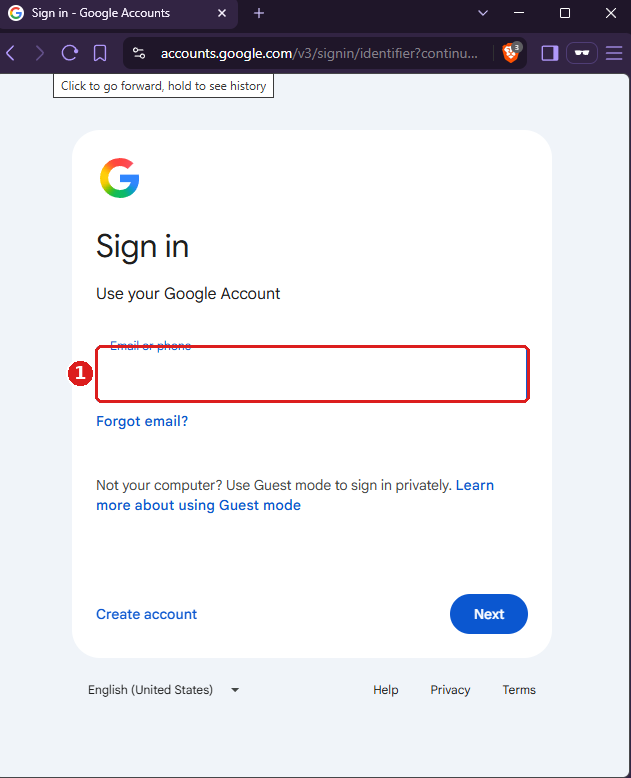
Navigate to https://notebook.google.com and sign in with your dedicated Gmail account 1.
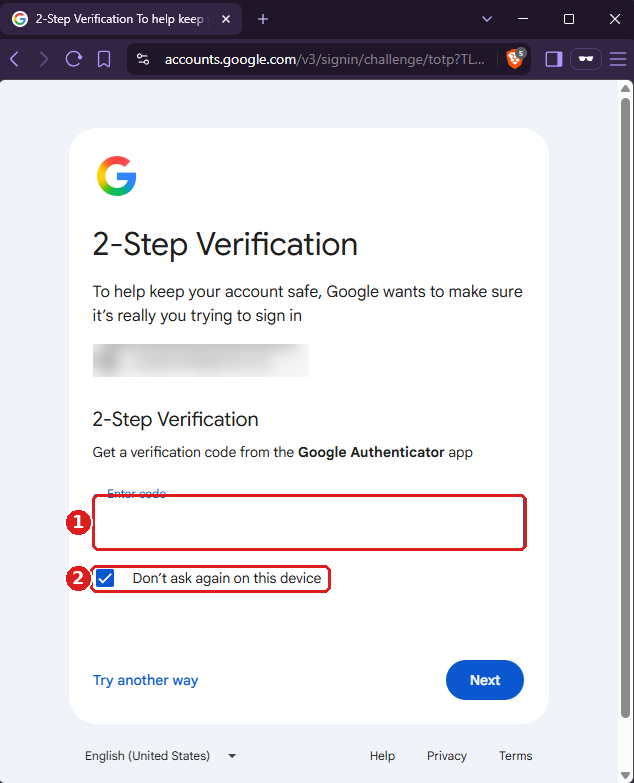
Enter your password, then the 2-Step Verification code 1. Google names Google Authenticator here whichever authenticator app holds the code.
You MUST check Don't ask again on this device 2 — skipping it will break the API session.
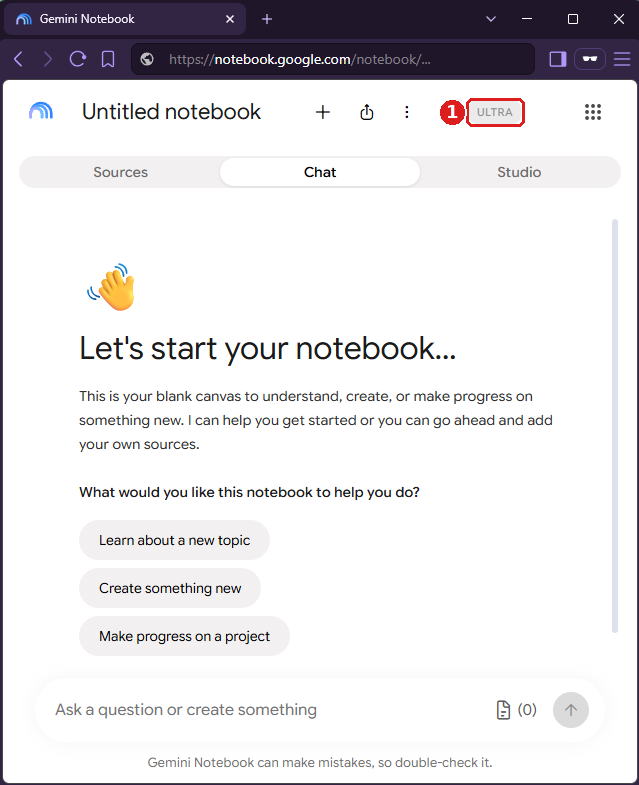
Once signed in you see Gemini Notebook with your plan’s badge 1 (no badge on a free account).
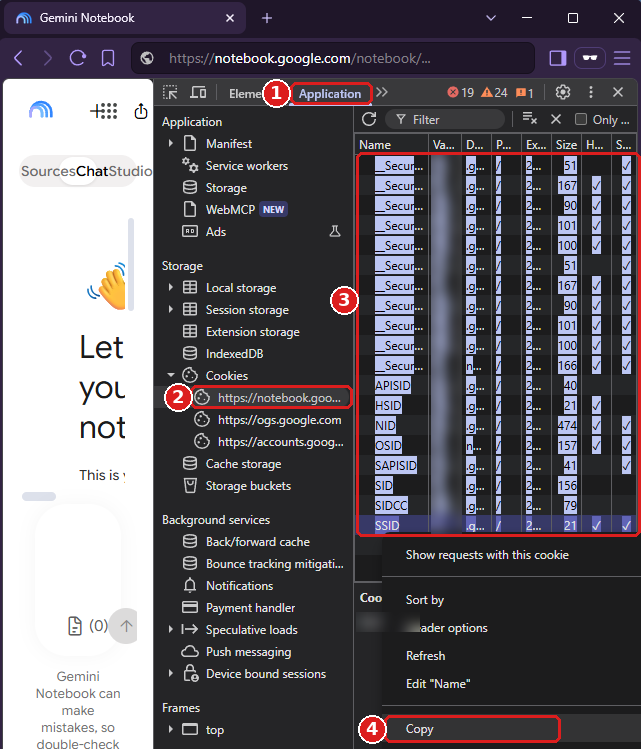
Copy the https://notebook.google.com cookies
- Open Developer Tools: right-click anywhere on the page and select
Inspect(or pressF12), then open theApplicationtab1 - Under
Cookies, selecthttps://notebook.google.com2 - Click in the cookie table and select all cookies (
Ctrl+A)3 - Copy them (
Ctrl+C, or right-click andCopy)4, and paste them into thecookiesfield below.
Copy the https://accounts.google.com cookies
This second set holds LSID. Without it the account is refused with Missing cookies: LSID. It is in the same Developer Tools, one entry down.
- Stay on the
Applicationtab1 - Under
Cookies, selecthttps://accounts.google.com2 - Click in the cookie table and select all cookies (
Ctrl+A)3 - Copy them (
Ctrl+C, or right-click andCopy)4, and paste them into the samecookiesfield below, under the first set.
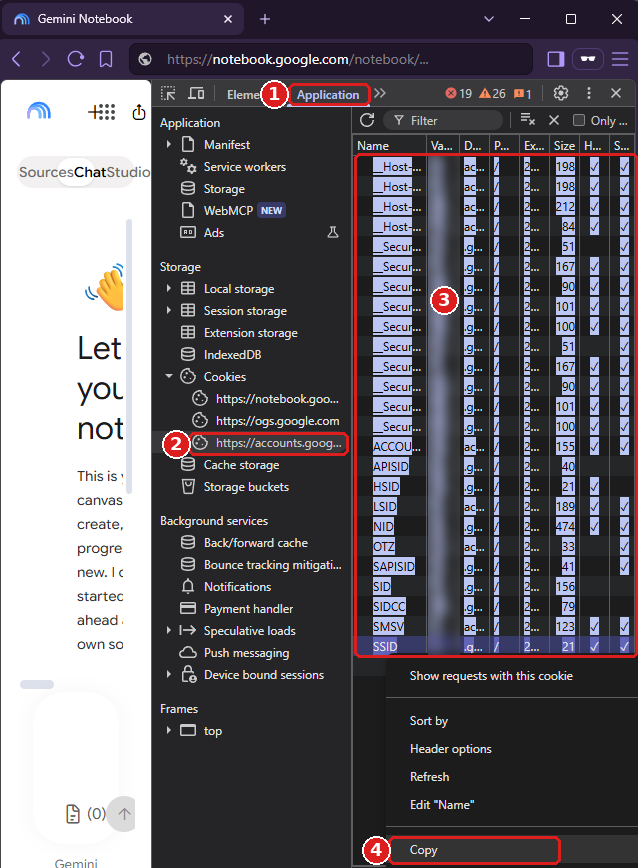
Before you paste, look for __Secure-1PSIDRTS in what you copied. If it is there, the session is device-bound and will be refused: close every Brave window and start again with the command above.
Paste everything you copied, exactly as it is. The form below sends it to POST /accounts, which checks the cookies with Google before the account is added.
A successful response is 201 for a new account or 200 for an update, with the account email, its Google plan (tier) and its current usage (quota).
If Google signs the account out
If Google ends the session of a connected account, the API detects it on the next request, re-checks it once, and then emails you right away with a link to re-add the account. Until you re-add it, the account is paused and shows the re-add message in GET /accounts. Re-adding through the automated setup takes about a minute.
Usage limits
Gemini Notebook meters usage per Google account in two windows — every 5 hours and weekly — as a share of the plan’s compute budget. Each Audio Overview, video, quiz or report uses part of it, and Google refuses new generations once the budget runs out until the window resets. Paid Google AI plans raise the budget. The API reports the live usage of each account at GET /accounts/email.
Start using the API
A single $15/month subscription covers every API on useapi.net — one token, all services. You connect up to 3 of your own provider accounts per service, and useapi.net handles the REST API, load balancing, and polling. Need more accounts? Each extra subscription is $10/month and adds 3 more accounts per service.
Subscribe — $15/month Pay with crypto
Pricing and volume options — full refund within the first 14 days if you have fewer than 50 successful generations. Already subscribed? Change the quantity in the Stripe Customer Portal instead of buying again.