 Google Flow
November 17, 2025 (September 10, 2026)
Table of contents
- Automated setup (recommended)
- Create a dedicated Gmail account
- Clear all browser cookies
- Navigate to Google Flow and login with your Gmail account
- Navigate to Google Account
- Copy
https://accounts.google.com/cookies - Verify and add account
- Configure Captcha Providers
Approximately 15 minutes to complete setup steps.
This is the setup guide for Google Flow API. An active Google account and a useapi.net subscription are required for the API to work.
Automated setup (recommended)
Use our guided browser setup to configure your account automatically — no DevTools or cookie copying needed. Enter your API token, log in with Google in the remote browser, and your account is ready.
Prefer manual setup? Continue with the steps below.
Google Flow creates cinematic AI clips with Veo, images with Nano Banana 2 Lite, Nano Banana 2 and Nano Banana Pro.
Create a dedicated Gmail account
⚠️ Use a dedicated Gmail account for this API - do NOT use your personal Gmail account.
If you already have a dedicated Gmail account for AI/API services, you can use that. Otherwise, create a new one.
When creating a new account:
- Enable 2-Step Verification
- Use Google Authenticator for verification codes
Clear all browser cookies
⚠️ Do NOT use Google Chrome. Google’s integration with Chrome will interfere with cookie extraction.
Use one of these browsers instead:
- Opera ← Recommended (has built-in VPN)
- Brave
- Ungoogled Chromium
If using Opera, enable VPN and set region to Americas.
You must clear ALL cookies before proceeding to start with a fresh session.
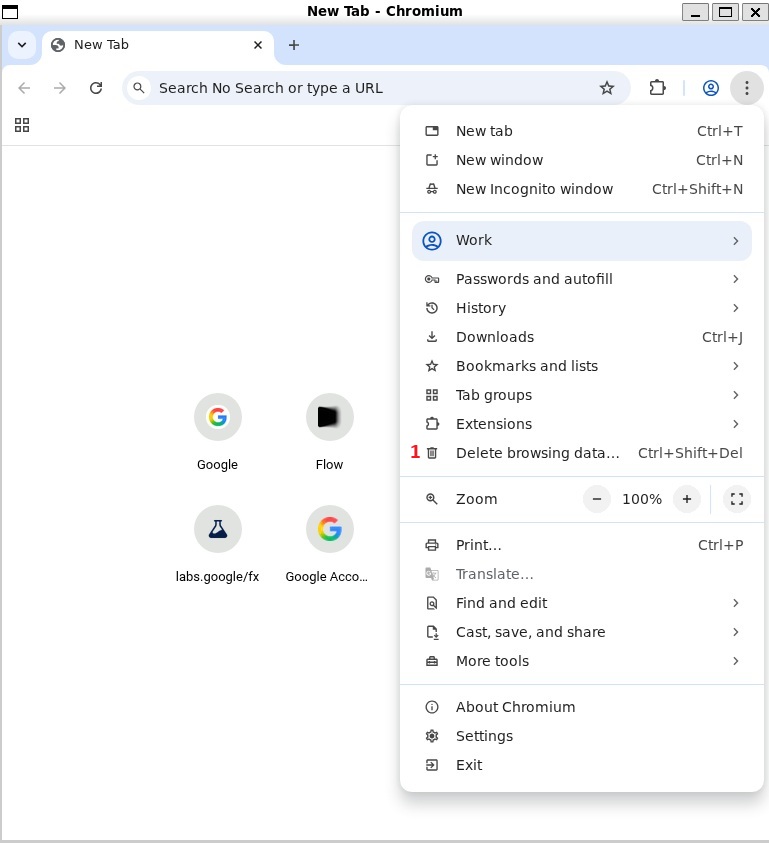
Open browser settings and select Delete browsing data... 1
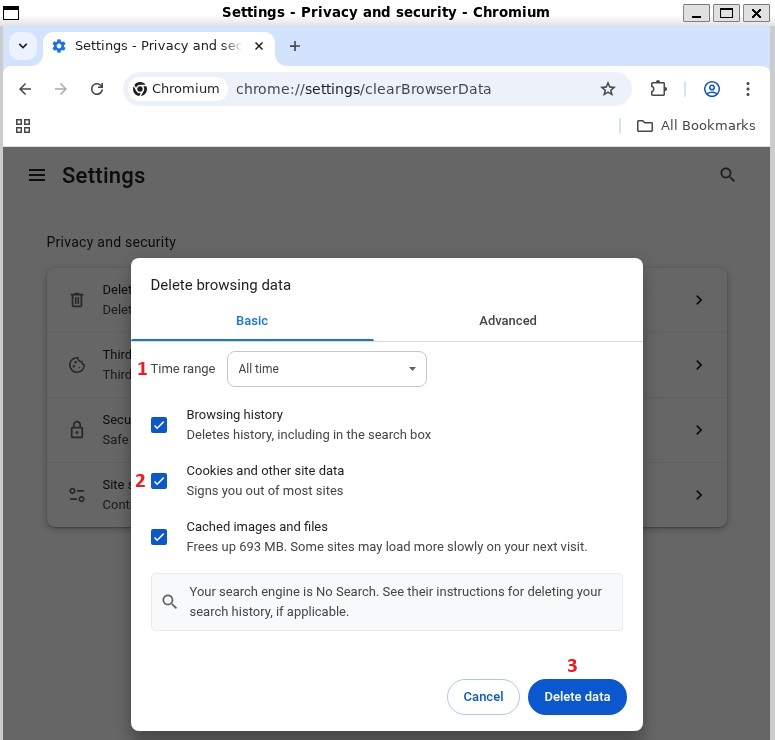
Select time range to be All time 1 and check Cookies and other site data 2, click Delete data 3
Navigate to Google Flow and login with your Gmail account
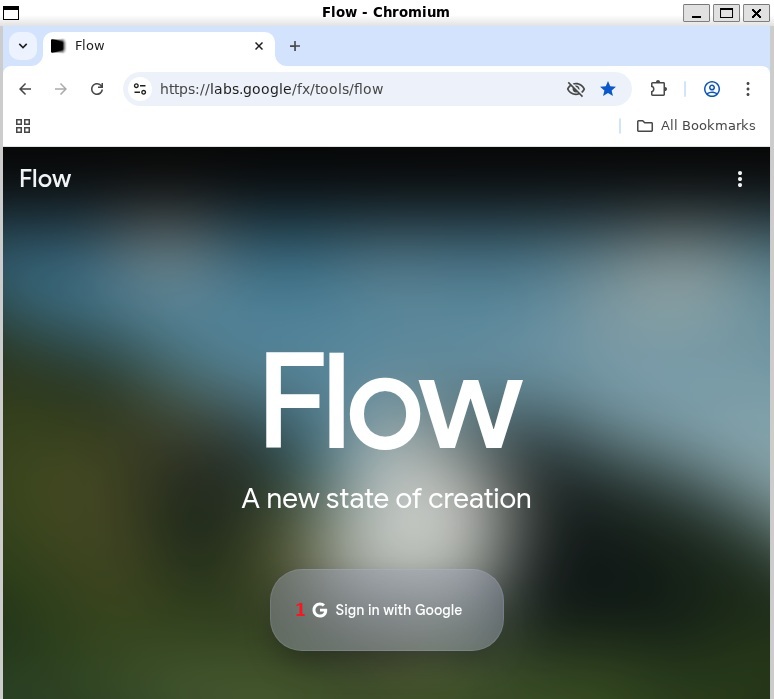
Navigate to https://flow.google.com and click on Create with Google Flow button 1
Enter your Google email created earlier 1
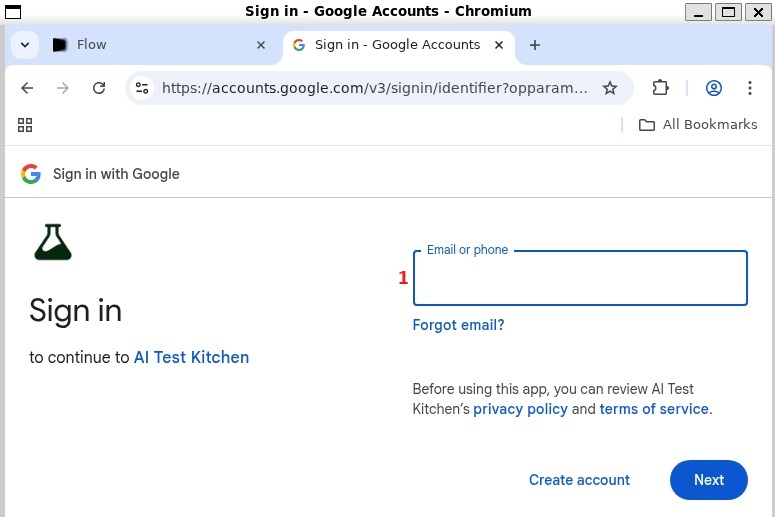
Enter your password and click Next
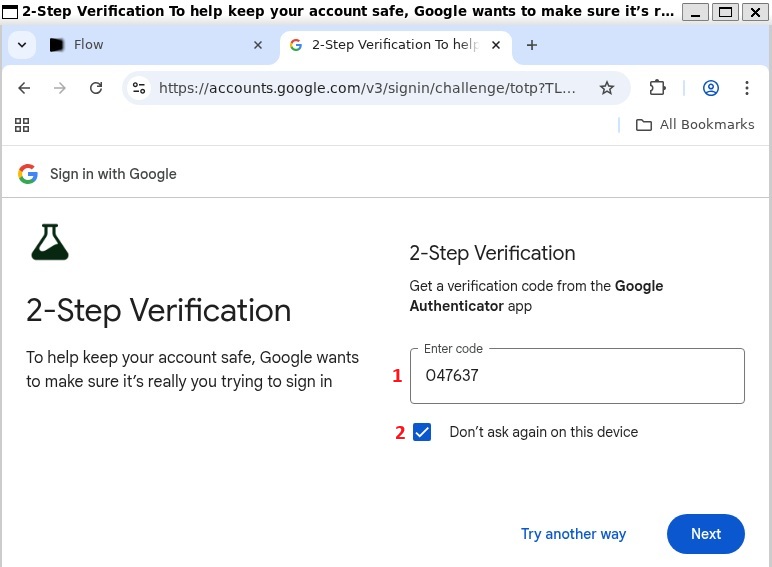
Enter 2-Step Verification code 1
⚠️ You MUST check Don't ask again on this device 2 - skipping this will break the API session.
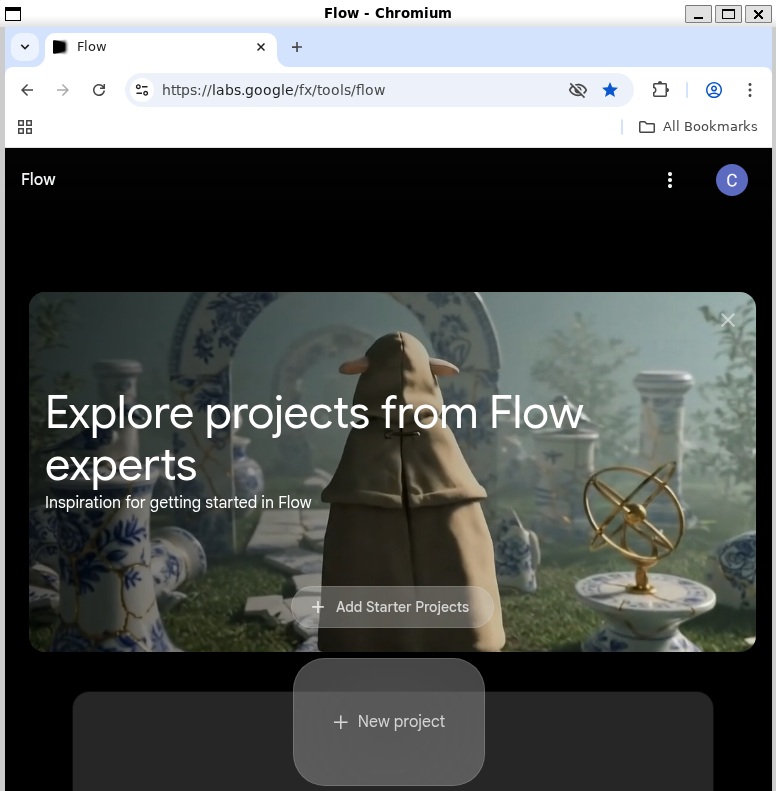
Once successfully logged in you should see New project button 1
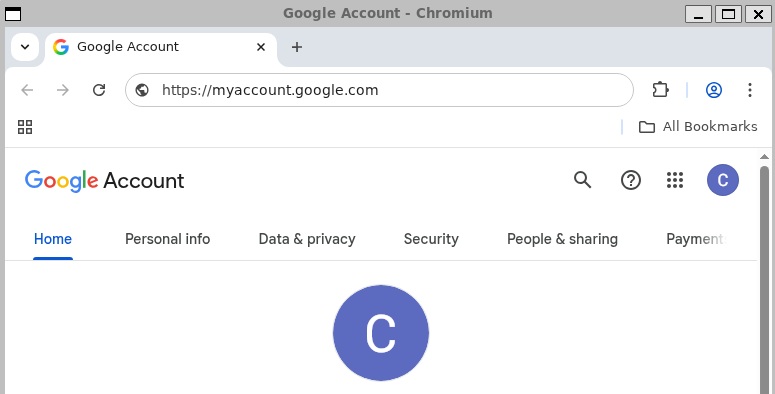
Navigate to Google Account
Navigate to https://myaccount.google.com/
Copy https://accounts.google.com/ cookies
- Open Developer Tools: right-click anywhere on page → select
Inspect(or pressF12)
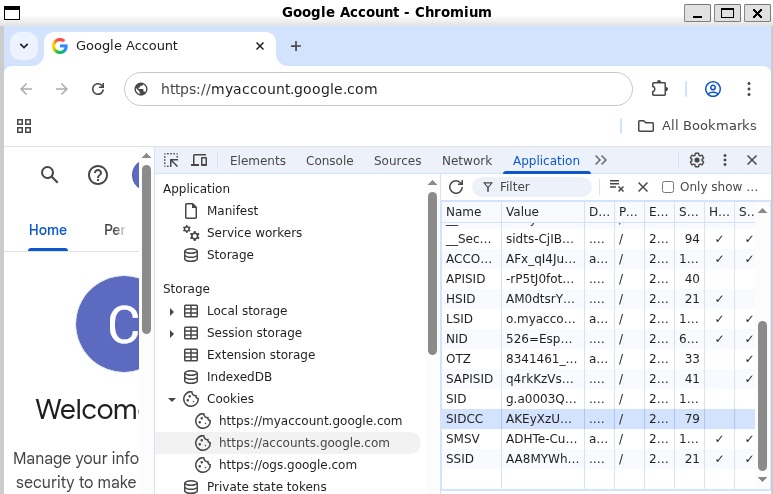
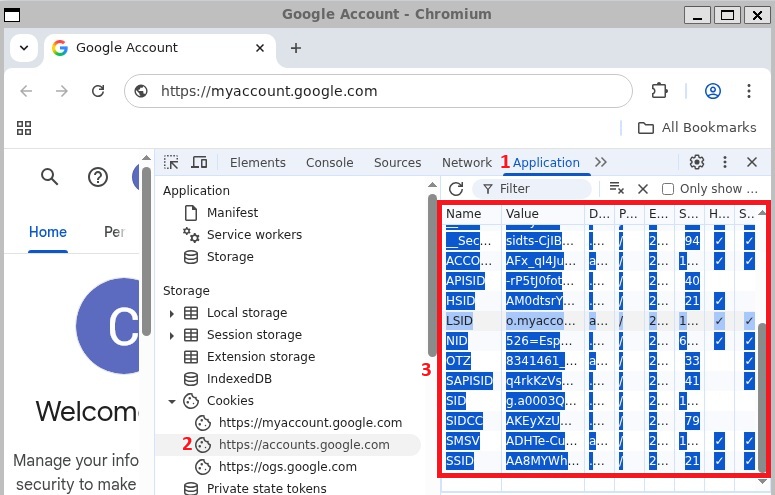
- Go to Application tab
1 - Select Cookies →
https://accounts.google.com/2 - Select all cookies in the right panel (
Ctrl+A) and copy (Ctrl+C)3
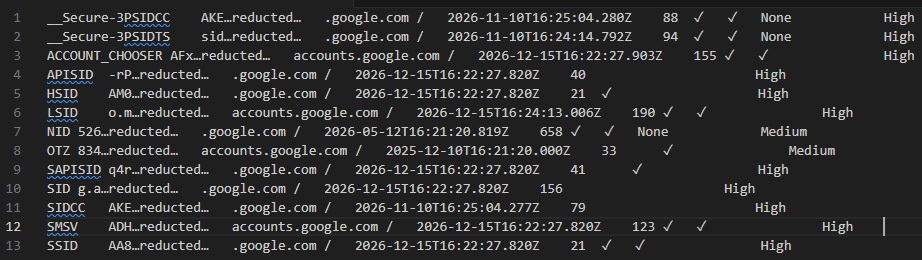
Your copied cookies will look similar to this (values redacted):
Verify and add account
Use the form below to verify your cookies and add your Google Flow account.
Select Add Account to complete setup, or Verify to test your cookies first. You should receive response 200 if successful. You can also use POST /accounts directly.
⚠️ CRITICAL — Do this immediately after adding your account:
- Open a new empty tab
- Close all other tabs
- Clear all browser cookies
- Do NOT restart the browser
⚠️ The API now manages this Google account session.
Do NOT access this Google account via AI Studio or Google Flow directly (browser or any other means). Using the same account through both the API and direct access will break the session and require you to redo this entire setup.
Configure Captcha Providers
Image and video generation requires reCAPTCHA v3 Enterprise solving.
Users receive 300 free captcha credits when adding their first Google Flow account. These credits are used automatically, so you can start generating images and videos right away without configuring any provider. Check your remaining credits via GET /accounts/captcha-providers.
After free credits are exhausted, you must configure at least one provider’s API key before using POST /images, POST /images/upscale, or POST /videos.
Supported Providers:
| Provider | Cost per 1K | Avg Solve Time | Reports Back | Website |
|---|---|---|---|---|
| CapSolver | ~$3.00 | ~8-12s | Yes | capsolver.com — use promo code useapi for 8% discount |
| AntiCaptcha | ~$2.00 | ~8-12s | Yes | anti-captcha.com |
| YesCaptcha | varies | ~8-12s | No | yescaptcha.com |
| SolveCaptcha | ~$0.80 | ~30-60s ⚠️ | Yes | solvecaptcha.com |
| 2Captcha | ~$2.99 | ~30-60s ⚠️ | Yes | 2captcha.com |
| EzCaptcha | ~$2.50 | ~8-12s | No | ez-captcha.com — currently not recommended due to low solve rate |
⚠️ SolveCaptcha and 2Captcha typically take 30-60 seconds per solve versus ~8-12 seconds for the others. They work well as low-cost fallbacks but can increase request latency as primary providers.
Reports Back — providers that support solve-result reporting receive correct/incorrect feedback after each use, which improves token quality over time.
Setup Steps:
- Create an account with one or more providers above
- Purchase credits and obtain your API key from the provider’s dashboard
- Configure your API key(s) using POST /accounts/captcha-providers
Tips:
- Use GET /accounts/captcha-stats?anonymized=true to compare success rates across providers and choose the best one for your needs. Note that provider performance may vary over time.
- Configure multiple providers for redundancy (if one fails or returns rejected tokens, the API automatically retries with the next provider)
- Each image/video generation attempt requires one captcha solve (~$0.80-$3.00 per 1,000 generations)
Start using the API
A single $15/month subscription covers every API on useapi.net — one token, all services. You connect up to 3 of your own provider accounts per service, and useapi.net handles the REST API, load balancing, and polling.
Pricing, crypto payment, and volume options — full refund within the first 14 days if you have fewer than 50 successful generations.