 Luma Dream Machine
April 6, 2026
Table of contents
Approximately 15 minutes to complete setup steps.
This is the setup guide for Luma API. This is an experimental API. An active Luma Dream Machine subscription and a useapi.net subscription are required for the API to work.
Luma Dream Machine creates AI-generated videos and images using Luma AI’s proprietary models. Video models: Ray v3, Ray v3 Flash, and Ray v3 Reasoning. Image models: Photon v2 and Image v2.
Create a Luma account
⚠️ Use a dedicated email account for this API — do NOT use your personal email.
You must create your account using the email + password option (called Enterprise Sign In on Luma’s login page). Google Sign In and Apple Sign In will not work — the API needs the session cookie which is only available through the email/password login flow.
- Navigate to https://dream-machine.lumalabs.ai
- Click Enterprise Sign In (bottom option on the login page)
- Enter your dedicated email address → click Continue
- Set a password → click Sign In
- Verify your email if prompted
Subscribe to a plan
You can test the API with a free account (limited to draft resolution, 1 concurrent slot), but most models and higher resolutions require a paid subscription. The Unlimited plan ($99.99/mo) is recommended — it provides unlimited generations at all resolutions with 4 concurrent slots.
- Navigate to https://dream-machine.lumalabs.ai and log in
- Go to your account settings or subscription page
- Select a plan and complete the subscription process
Extract session cookie
You only need to extract one value — the session cookie (~25 characters). The API derives everything else automatically.
You need to open Developer Tools before logging in, because the cookie is set during the login response.
1. Open Developer Tools before logging in
- Navigate to https://dream-machine.lumalabs.ai
1— log out first if you’re already logged in - Open Developer Tools (F12) → go to the Network tab
2 - Check Preserve log
3and Disable cache4at the top of the Network tab - Click Enterprise Sign In and log in with your email and password
5
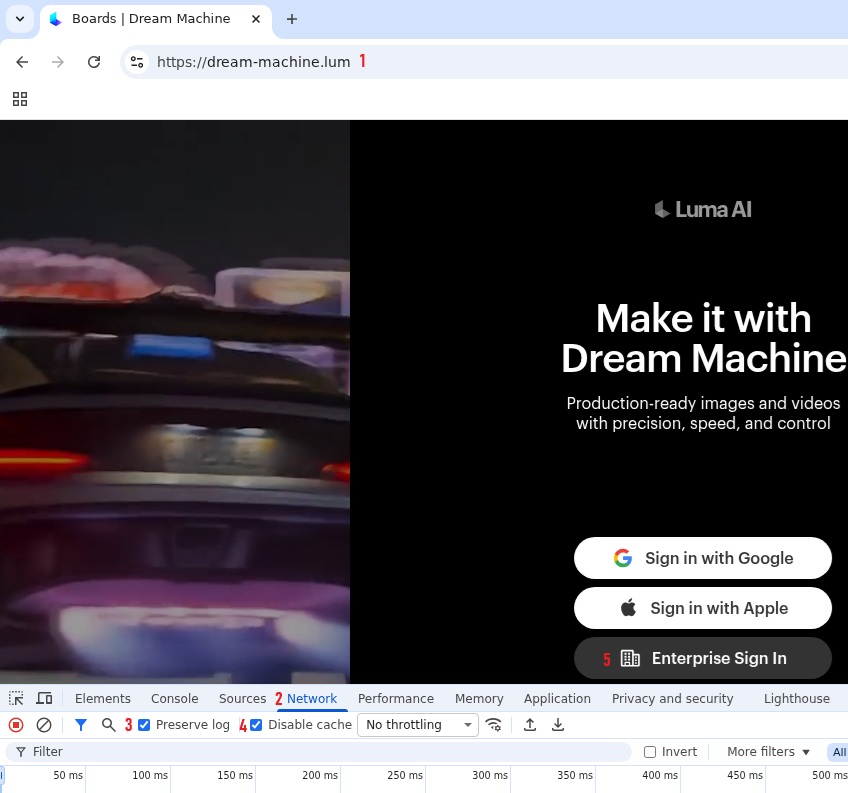
2. Capture the session cookie from login response
- In the Network tab, filter by
/password1to find the requestPOST https://auth.lumalabs.ai/password2 - Click on it → Headers tab
3→ scroll to Response Headers → look forSet-Cookieentries - Copy the value of the
sessioncookie4(a short random string, ~25 characters):
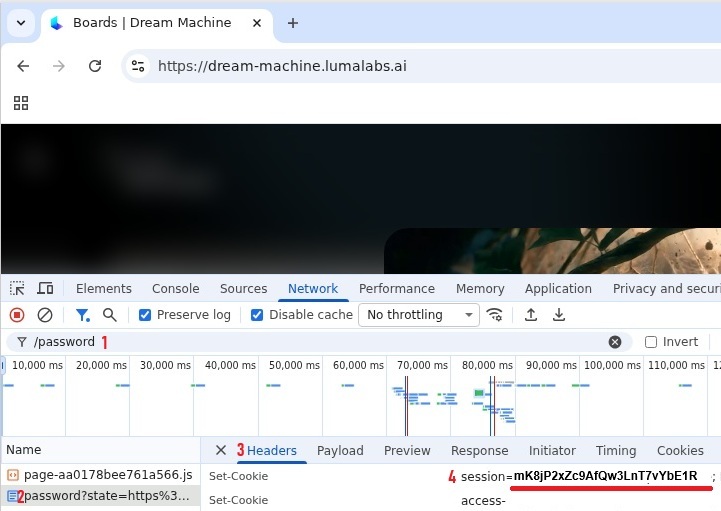
| Cookie | Looks like | Description |
|---|---|---|
session | mK8jP2xZc9AfQw3LnT7vYbE1R (~25 chars) | session cookie — this is the only value you need |
Verify and add account
Use the form below to add your Luma account. You can also use POST /accounts directly.