How to Use Veo 3.1 and Nano Banana in ComfyUI with the Google Flow API
6 min read • November 25, 2026
Table of contents
- Introduction
- The three Google Flow nodes
- What you need
- How to install the Google Flow nodes in ComfyUI
- Set your API token
- The example workflows
- Image to video in ComfyUI: Nano Banana to Veo 3.1 Lite to 1080p
- Models and plan limits
- Common errors and how to fix them
- Examples
- Questions
- Conclusion
Introduction
useapi-google-flow is a free, MIT-licensed ComfyUI node pack from useapi.net: three nodes make Veo 3.1 Lite and Omni 1.2 Flash videos, Nano Banana images and 720p, 1080p or 4K upscales on your own Google account’s Flow credits, not Comfy credits. It calls Google Flow through the useapi.net Google Flow API. Every video spends your Google account’s Flow credits; useapi.net charges a flat monthly subscription, not a fee per video.
You build the workflow in ComfyUI as usual. A Nano Banana image goes into a Veo 3.1 Lite video, and the video goes into an upscale node. The MP4 files land in your ComfyUI output folder. The code is open source under the MIT license on GitHub, and the pack is listed in the Comfy Registry.
useapi.net is a third-party API, not affiliated with Google or Comfy.
Also on YouTube: Veo 3.1, Omni 1.2 Flash and Nano Banana in ComfyUI, 21 seconds of the real outputs on this page.
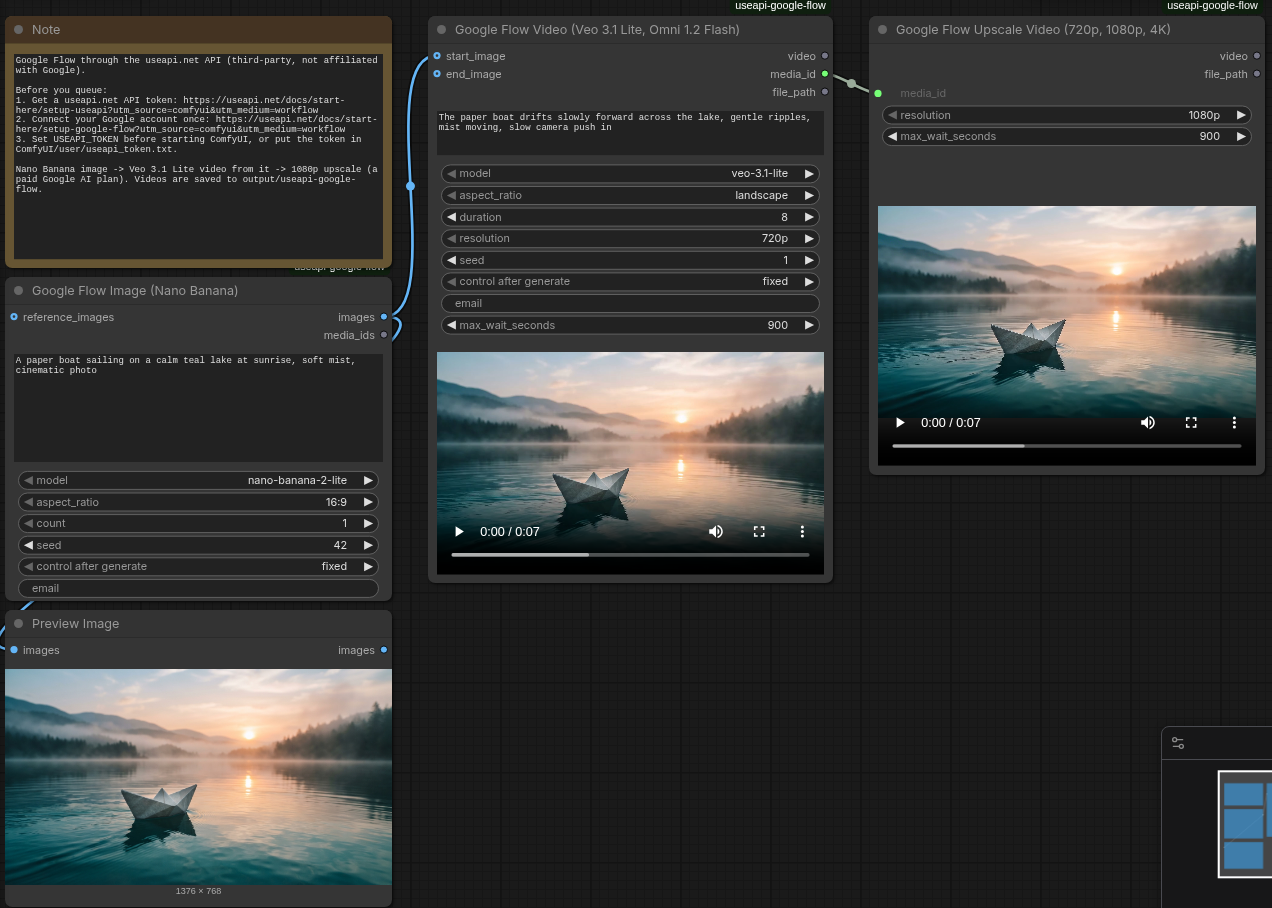 The image to video to 1080p example workflow after a run.
The three Google Flow nodes
| Node | What it does |
|---|---|
| Google Flow Image (Nano Banana) | Makes 1 to 4 images from a prompt with Nano Banana 2 Lite, Nano Banana 2.1 or Nano Banana Pro. Connect up to 10 reference images to edit or guide the result. The image node returns ComfyUI images and their Google Flow media ids. Connect Save Image to keep the files. |
| Google Flow Video (Veo 3.1 Lite, Omni 1.2 Flash) | Makes a landscape or portrait video from a prompt alone, or from a start image and an optional end image. |
| Google Flow Upscale Video (720p, 1080p, 4K) | Upscales a Google Flow video. Connect media_id from the video node. |
The video nodes save each MP4 to ComfyUI/output/useapi-google-flow/ and play it on the node. Their VIDEO output also works with ComfyUI’s own Save Video and other video nodes.
Veo 3.1 Fast and Quality retire in Google Flow on December 5, 2026, so the pack offers Veo 3.1 Lite.
What you need
- A Google account with Google Flow. A free account gets 50 Flow credits a day: 5 Veo 3.1 Lite videos or one 10-second Omni 1.2 Flash video, and images cost nothing. A Google AI subscription (Plus, Pro or Ultra) adds more Flow credits, longer Omni clips and upscaling.
- A useapi.net account with an API token. One $15/month subscription covers every useapi.net API, with no per-call surcharge.
- The Google account connected to useapi.net once: Setup Google Flow. Your first account comes with 300 free captcha credits. After that, add your own captcha provider key.
How to install the Google Flow nodes in ComfyUI
Pick one of three ways:
- ComfyUI-Manager: search for
useapi-google-flowand install it. - Comfy CLI:
comfy node install useapi-google-flow - By hand: clone the repo into your custom nodes folder, then restart ComfyUI.
cd ComfyUI/custom_nodes
git clone https://github.com/useapi/comfyui-google-flow
The only dependency is requests, which ComfyUI already installs. The nodes appear under useapi.net/Google Flow in the node menu.
Set your API token
The nodes have no token field. You set the token once, outside ComfyUI, in one of two places:
- the environment variable
USEAPI_TOKEN, set before you start ComfyUI, or - the file
useapi_token.txtin ComfyUI’suserfolder (next tocustom_nodesandoutput), holding only the token. You don’t need to restart ComfyUI after you create it.
This is on purpose. ComfyUI copies every node input into the workflows you save, into the metadata of every image and video it saves, and into its history. A token typed into a node would travel with every PNG, MP4 and workflow file you share.
The example workflows
The pack ships three workflows. In ComfyUI, open Templates and search for google-flow, or load the JSON files from example_workflows on GitHub. They are also on Civitai as one download.
google-flow-image-to-video-upscale: a Nano Banana image, a Veo 3.1 Lite video from it, then a 1080p upscale.google-flow-text-to-video: an Omni 1.2 Flash video from a prompt.google-flow-nano-banana-edit: an image you load, edited with Nano Banana.
Image to video in ComfyUI: Nano Banana to Veo 3.1 Lite to 1080p
This is the first workflow. It already holds the settings we used for the media on this page. Queue it once and the three nodes run in order. On a free Google account, select the upscale node and press Ctrl+B to bypass it first, because upscaling needs a paid plan.
1. Make the first frame with Nano Banana
In Google Flow Image, write the prompt, pick nano-banana-2-lite, 16:9 and a count of 1. We used A paper boat sailing on a calm teal lake at sunrise, soft mist, cinematic photo with seed 42. Nano Banana images spend no Flow credits on any plan.

nano-banana-2-lite, 16:9, 1376 x 768.
2. Turn it into a Veo 3.1 Lite video
Connect the images output to start_image on Google Flow Video. Set veo-3.1-lite, landscape, 8 seconds and 720p, and describe the motion: The paper boat drifts slowly forward across the lake, gentle ripples, mist moving, slow camera push in. The node uploads the image to your Google account, starts the video and waits for it. The progress bar moves while it waits, Cancel in ComfyUI stops the wait, but not a job Google has already started; that job keeps running in your Google Flow account.
veo-3.1-lite, 720p, 8 seconds, with sound, started from the image above.The video seed is not sent to Google. Change it, or set it to randomize, when you want ComfyUI to queue a new take with the same settings. Each new take spends Flow credits again.
3. Upscale it to 1080p
Connect media_id from the video node to Google Flow Upscale Video and pick 1080p. If you add the upscale node later, or change only its resolution, ComfyUI reuses the image and the video it already made and runs only the upscale. This works because the example workflows use fixed seeds.
Upscaling to 720p or 1080p needs a paid Google AI plan (Plus, Pro or Ultra), and 4K needs Google AI Ultra.
Models and plan limits
The nodes catch a length or resolution the model can’t make before they send anything, and useapi.net refuses anything your plan doesn’t include before Google starts. Neither costs Flow credits.
| Model | What you can make | Google AI plan |
|---|---|---|
| Nano Banana 2 Lite, 2.1 and Pro | 1 to 4 images, 16:9, 4:3, 1:1, 3:4, 9:16, or auto (the first reference image’s shape) | Every plan, no Flow credits |
| Veo 3.1 Lite | 720p, 4, 6 or 8 seconds | Every plan for 8 seconds. 4 and 6 seconds need Ultra |
| Omni 1.2 Flash | 360p or 720p, 3 to 15 seconds. With a start and an end image, 3 to 10 seconds | Every plan up to 10 seconds. Longer needs Plus, Pro or Ultra |
| Upscale | 720p (for 360p clips), 1080p or 4K, from videos of up to 15 seconds | 720p and 1080p need Plus, Pro or Ultra. 4K needs Ultra |
Videos spend Flow credits from your Google account, the same as in Flow itself. An 8-second Veo 3.1 Lite video costs 10 credits, or 5 on Ultra. Omni 1.2 Flash at 720p costs 3 credits a second up to 10 seconds and 6 a second after that, so a 10-second clip costs 30. Upscaling to 1080p costs no credits for videos of up to 10 seconds. Past 10 seconds it costs 1 credit a second, and a 4K upscale costs 50 credits (up to 10 seconds), on Ultra only. The full table is on POST /videos.
The image and video nodes have an optional email field. Leave it empty and useapi.net picks one of your connected Google accounts. Images you connect are uploaded to that account first, because a generation can use only media from its own account.
Common errors and how to fix them
Errors show up in ComfyUI as a plain message that starts with Google Flow (useapi.net): and says what to do. The ones you are most likely to see:
| What the node says | What to do |
|---|---|
| The 300 free captcha credits are used up | Add your own captcha provider key in Setup Google Flow. |
| Google refused the captcha on every try | Nothing was made and no Flow credits were used. Try again, or leave email empty so useapi.net picks another account. |
| This length needs a Google AI Ultra plan, or the plan does not include this | Pick a length or resolution your plan has (see the table above), or use an account on a higher plan. |
| Omni 1.2 Flash has not reached this Google account yet | Google is still rolling the model out. Use another account or Veo 3.1 Lite. |
| Google rejected this account’s session (596) | useapi.net re-verifies the account on its own. Retry in about a minute. If it keeps saying 596, add the account again. |
| Google returned no image, or the job failed with a reason from Google | Usually Google’s moderation. Retry or change the prompt. If the node says an input image was flagged as protected content, replace the image, because the same image fails again. If Google’s audio filter rejected the sound, queue it again. |
| Google Flow is still working on the job after 900 seconds | Don’t queue it again, or you pay twice. Raise max_wait_seconds, or fetch the video later from your Google Flow project. |
| useapi.net rejected the API token, or your subscription is not active | Check the token in USEAPI_TOKEN or useapi_token.txt, and your subscription. |
If the token is missing, the node says where to put it. During Google’s peak hours, roughly 2 PM to 5 PM UTC, a free account may not be able to make videos, while images still work. For the reasons behind Google’s own error codes, such as PUBLIC_ERROR_UNSAFE_GENERATION, see Google Flow errors explained.
Examples
Both come from the same test run as the media above.
Omni 1.2 Flash from text, with the second example workflow. omni-flash-1.2, landscape, 10 seconds, 720p. Prompt: Handheld street-level shot of a paper boat racing down a rain gutter in a neon-lit Tokyo alley at night, reflections on wet asphalt, light rain, city ambience.
omni-flash-1.2, 720p, 10 seconds, with sound.A Nano Banana edit, with the third example workflow. We loaded ComfyUI’s own example.png and connected it to reference_images, with nano-banana-2 (Nano Banana 2.1), aspect ratio auto (the workflow’s default, which keeps the square shape of the 768 x 768 input) and the prompt Turn this into a watercolor painting with soft paper texture, keep the composition.
 Left: the input. Right: the Nano Banana 2.1 edit.
Start using the API
A single $15/month subscription covers every API on useapi.net — one token, all services. You connect up to 3 accounts per service, each with its own website subscription, and useapi.net handles the REST API, load balancing, and polling. Need more accounts? Each extra subscription is $10/month and adds 3 more accounts per service.
Subscribe — $15/month Pay with crypto
Pricing and volume options — full refund within the first 14 days if you have fewer than 50 successful generations. Already subscribed? Change the quantity in the Stripe Customer Portal instead of buying again.
Questions
Is there a Google Flow node for ComfyUI?
Yes. useapi.net publishes useapi-google-flow, a free, MIT-licensed ComfyUI node pack for Google Flow. It makes Nano Banana images, Veo 3.1 Lite and Omni 1.2 Flash videos, and upscales up to 4K. Google has no official Google Flow API, and this pack runs Flow on your own Google AI plan through useapi.net. Install it from ComfyUI-Manager or with comfy node install useapi-google-flow.
Can I use Veo 3.1 and Nano Banana in ComfyUI without Comfy credits?
Yes. The useapi.net nodes run Veo 3.1 Lite and Nano Banana on your own Google account, so videos spend its Flow credits and Nano Banana images spend none on any plan. ComfyUI’s own Google Veo and Nano Banana partner nodes need a Comfy account and are billed in Comfy credits you buy in advance (as of November 2026). You pay a useapi.net subscription, not a price per call.
Where do I put the useapi.net API key in ComfyUI?
useapi.net keeps the token out of your workflows. Set it in the USEAPI_TOKEN environment variable before you start ComfyUI, or put it in ComfyUI/user/useapi_token.txt. There is no token field on purpose: ComfyUI copies node inputs into saved workflows and into the metadata of every PNG and MP4, so a token typed into a node would leak whenever you share a file.
Do the nodes work on a free Google account?
Yes. Through useapi.net a free Google account makes Nano Banana images, 8-second Veo 3.1 Lite videos and Omni 1.2 Flash videos of up to 10 seconds (once Google has rolled the model out to the account) on its Flow credits. Upscaling needs Google AI Plus, Pro or Ultra, and 4K needs Ultra. See Models and plan limits for every limit.
Conclusion
Install useapi-google-flow, set your token once, and open the google-flow templates. The Google Flow API overview lists everything else the API does, and the google-flow-api repo has more examples in Node.js, Python, n8n and Dify.
Visit our  Discord Server or
 Telegram Channel for any support questions and concerns.
Check our GitHub repo for the nodes and the example workflows.