 Setup ACE Music
November 14, 2026
Table of contents
- Create an ACE Music account
- The email and password the API uses
- Accounts that sign in with Google or a phone number
- Add the account
- What to expect
- If the account needs attention
Approximately 3 minutes to complete setup steps.
This is the setup guide for ACE Music API. An ACE Music account with an email and a password and a useapi.net subscription are required for the API to work.
ACE Music is the song generator from Timedomain, the maker of ACE Studio. Every request makes two songs, with vocals or instrumental, from a prompt or from your own style and lyrics, and it covers, remixes, edits and mashes up songs you made or uploaded. The Free plan comes with 20 credits a day, and ACE-Step v1.5 XL songs use no credits on any plan. See Pricing.
The API signs in with the account’s email and password, the way you sign in at acemusic.ai, and keeps ACE Music’s session from then on. It renews the session by itself and signs in again with the stored password when ACE Music ends it. The password is used only to sign in to ACE Music and is never returned by the API.
Each useapi.net subscription lets you connect 3 ACE Music accounts, up to 100 in total.
Create an ACE Music account
We recommend a dedicated ACE Music account for the API, separate from the one you use in your browser.
- Open acemusic.ai and click Sign up.
- Enter an email you can read and a password, then sign up. ACE Music emails a 6-digit code: enter it to verify the email.
- Skip or finish the onboarding. Nothing else needs to be set up.
To use ACE Music v1 and v1.1 beyond the Free plan’s 20 daily credits, or to download WAV, MIDI and MusicXML files and split stems, subscribe to Creator or Artist on the pricing page with that account.
The email and password the API uses
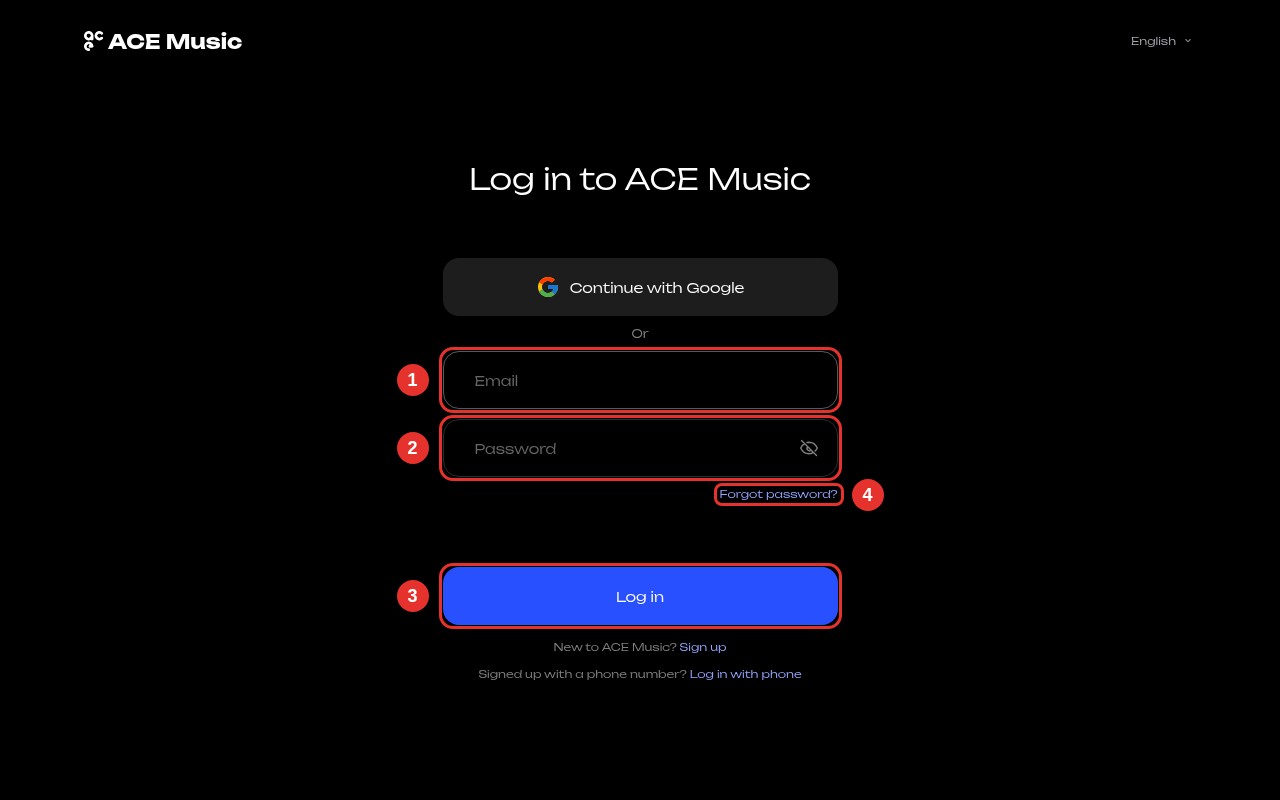
The API signs in exactly the way the Log in page does, so the email and password you add are the ones you type there. Sign in once in your browser to check them:
- Enter the account’s email
1. - Enter its password
2. - Click Log in
3. If ACE Music lets you in, the same email and password will work in Add the account below. - No password yet, or forgot it? Use Forgot password?
4to set one by email.
Signing in to acemusic.ai in your own browser does not end the API’s session.
Accounts that sign in with Google or a phone number
The API needs an email and a password. An account made with Continue with Google or with a phone number has no password yet. Set one on acemusic.ai first, for example with Forgot password? 4 in the Log in box (screenshot above): enter the account’s email, type the 6-digit code ACE Music sends, then set a new password of 8 to 20 characters with both letters and numbers. Then add the account below with that email and password.
Adding such an account before it has a password answers 400 with ACE Music refused the email or password.
Add the account
Paste your useapi.net API token and the account’s email and password, then click Go. You can also call POST /accounts directly.
The API signs in, checks the session and answers 200 with the account, its plan and the credits left. Adding the same email again with a new password replaces the stored one.
What to expect
- Signing out of acemusic.ai in your own browser does not end the API’s session either.
- After you change or reset the password on acemusic.ai, the stored one no longer works. Add the account again with the new password.
- Each account runs up to 4 requests at a time, which is ACE Music’s own limit. Lower it with
maxJobsif you share the account with your own work on acemusic.ai.
If the account needs attention
When ACE Music refuses the stored email and password, the API pauses the account, emails you once and answers 596 for it, with the reason in error on GET /accounts. Add the account again with the current password to resume. Temporary problems never pause an account: they answer 503, and a retry works.