Cách tạo ảnh Nano Banana 2.1 và Nano Banana Pro qua Google Flow API
6 phút đọc • 15 tháng 6 năm 2026 (6 tháng 11 năm 2026)
useapi.net là API của bên thứ ba, không liên kết với Google và không được Google bảo trợ.
Mục lục
- Giới thiệu
- Các model được hỗ trợ
- Giá
- Cách tạo ảnh Nano Banana bằng curl
- Ảnh tham chiếu và nhân vật
- Tạo hàng loạt bằng script
- Ví dụ
- Câu hỏi thường gặp
- Kết luận
Giới thiệu
Chỉ một lệnh POST đồng bộ tới Google Flow API của useapi.net là bạn nhận về tối đa bốn ảnh Nano Banana 2.1, Nano Banana Pro hoặc Nano Banana 2 Lite, được tạo bằng tài khoản Google Flow của bạn. Việc tạo ảnh có sẵn trong mọi gói Google AI, kể cả tài khoản miễn phí, trong khi Gemini API chính thức tính từ $0,034 đến $0,134 mỗi ảnh (tính đến tháng 11/2026). Không cần dự án Google Cloud, không cần Gemini API key.
Hướng dẫn này gồm các model bạn dùng được, mức chênh lệch giá, cách tạo ảnh bằng một lệnh gọi curl để sao chép và dùng ngay, và một script Node.js chạy được để tạo ảnh hàng loạt từ danh sách prompt. Muốn xem ba model khác nhau thế nào trên cùng một prompt? Xem so sánh các model Nano Banana. Cần video? Xem hướng dẫn Veo 3.1, bài cùng loạt với bài này.
Các model được hỗ trợ
Chọn model cho mỗi request bằng trường model (mặc định nano-banana-2-lite). Cả ba model đều chạy trên mọi gói Google AI, kể cả tài khoản miễn phí.
| Model id | Tên thương mại | Ảnh tham chiếu (I2I) | Tỉ lệ khung hình | Ghi chú |
|---|---|---|---|---|
nano-banana-2-lite (mặc định) | Nano Banana 2 Lite / Gemini 3.1 Flash-Lite Image | tối đa 10 | 16:9, 4:3, 1:1, 3:4, 9:16, auto† | Model ảnh mặc định của Google Flow từ tháng 7/2026. Ở chế độ tạo ảnh từ ảnh vẫn giữ 16:9 nếu bạn không truyền tỉ lệ |
nano-banana-2 | Nano Banana 2.1 | tối đa 10 | 16:9, 4:3, 1:1, 3:4, 9:16, auto† | Mặc định auto ở chế độ tạo ảnh từ ảnh |
nano-banana-pro | Nano Banana Pro / Gemini 3 Pro Image | tối đa 10 | 16:9, 4:3, 1:1, 3:4, 9:16, auto† | Model ảnh chất lượng cao nhất, mặc định auto ở chế độ tạo ảnh từ ảnh |
† auto chỉ hợp lệ ở chế độ tạo ảnh từ ảnh (có ít nhất một reference_* hoặc character_*), khi đó backend lấy tỉ lệ từ ảnh tham chiếu đầu tiên. Khi có nhiều ảnh tham chiếu thì hướng ảnh không được đảm bảo, nên hãy truyền tỉ lệ cụ thể nếu mọi ảnh phải ra cùng một khổ.
Cả ba đều nhận count (1–4) và seed để tái tạo kết quả. Nếu bỏ model, API dùng nano-banana-2-lite, dù có hay không có ảnh tham chiếu. Hai alias cũ vẫn được chấp nhận: nano-banana trỏ tới nano-banana-2, còn imagen-4 trỏ tới nano-banana-2-lite (Google đã gỡ Imagen khỏi Google Flow vào tháng 7/2026). Chi tiết và khả năng của từng model có trong tài liệu POST /images.
Upscale lên 2K/4K
Ảnh tạo bằng bất kỳ model nào trong ba model đều có thể upscale bằng POST /images/upscale: truyền mediaGenerationId của ảnh và resolution là 2k (mặc định) hoặc 4k. Phản hồi là base64 trong encodedImage. 2k chạy trên mọi gói, kể cả tài khoản miễn phí. 4k cần Google AI Ultra, và trên mọi gói khác sẽ trả về 400 với 4k upscaling is not available for this account trước khi giải captcha, nên không tốn gì và thử lại cũng vô ích. Cả hai đều không tốn credit Flow.
Giá
Ảnh không tốn credit Flow trên bất kỳ gói Google AI nào, kể cả tài khoản miễn phí, và useapi.net không thu phí theo ảnh. Chỉ cần gói trả phí cho video Omni 1.1 Flash, video Omni 1.2 Flash dài hơn 10 giây, kéo dài video bằng Omni 1.2 và upscale video, còn upscale ảnh 4k thì cần Ultra. Giá của mọi model trên mọi gói, so với API chính thức, có trong bảng giá Google Flow.
Cách tạo ảnh Nano Banana bằng curl
Bạn cần một API token của useapi.net và một tài khoản Google Flow đã kết nối. Tạo ảnh là thao tác đồng bộ: một lệnh POST sẽ chờ đến khi ảnh xong (thường 10–20 giây) và trả ảnh ngay trong phản hồi, nên không có jobid nào phải poll. Bước hai chỉ là lưu kết quả, từ URL đã ký, hoặc khi không có URL đó thì từ ảnh base64 nằm ngay trong phản hồi.
- Gửi prompt —
POST https://api.useapi.net/v1/google-flow/images:
curl -X POST "https://api.useapi.net/v1/google-flow/images" \
  -H "Authorization: Bearer $USEAPI_TOKEN" \
  -H "Content-Type: application/json" \
  -d '{
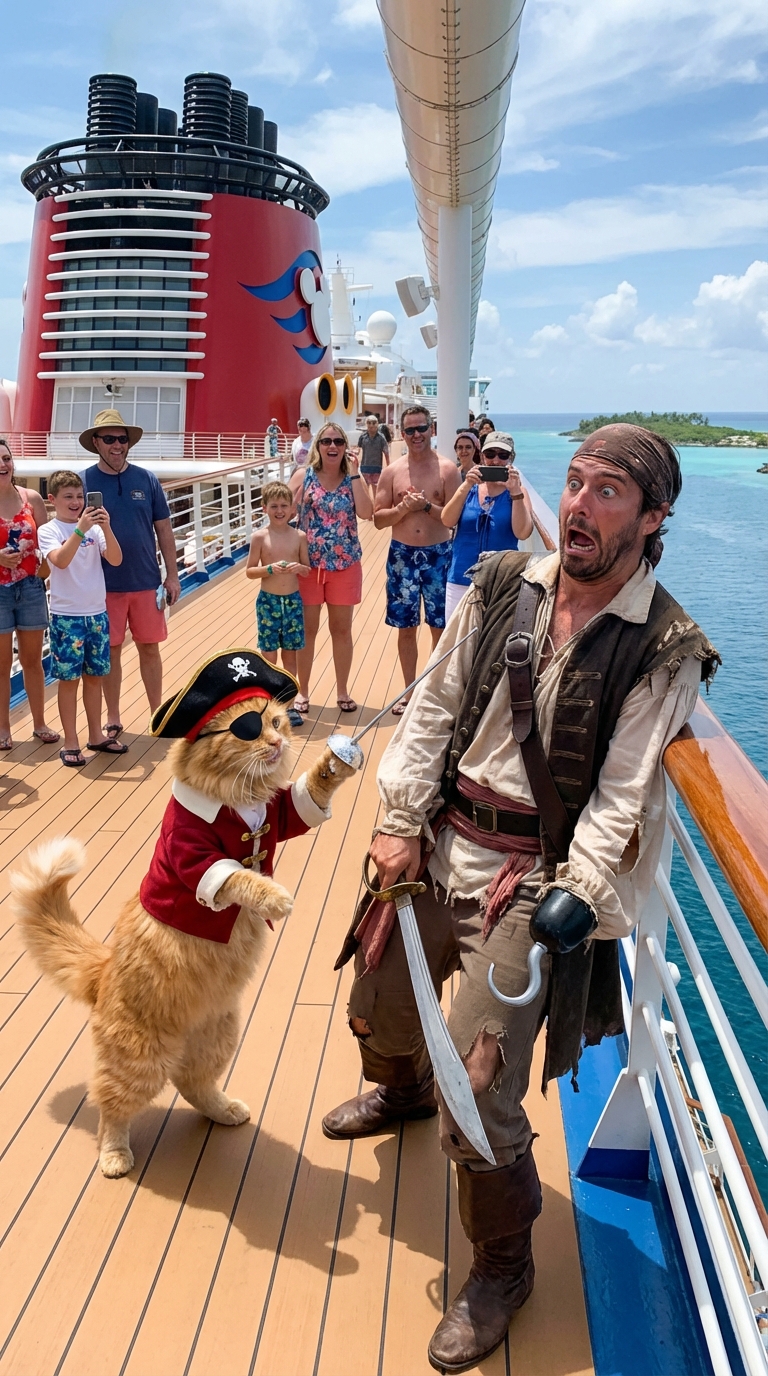
    "prompt": "Cat dressed like a pirate fencing with a real pirate, pirate looks absolutely terrified, this is happening on a deck of the Disney cruise ship",
    "model": "nano-banana-pro",
    "aspectRatio": "16:9",
    "count": 4,
    "seed": 123456
  }' > response.json
Lệnh gọi trả về 200 OK kèm jobId và mảng media, mỗi ảnh một phần tử (count từ 1 đến 4, mặc định 4). URL tải xuống đã ký của mỗi ảnh nằm ở media[].image.generatedImage.fifeUrl:
{
  "jobId": "j1731859345678i-u12345-email:jo***@gmail.com-bot:google-flow",
  "media": [
    {
      "image": {
        "generatedImage": {
          "seed": 123456,
          "mediaGenerationId": "user:12345-email:6a6f...-image:...",
          "prompt": "Cat dressed like a pirate fencing with a real pirate, pirate looks absolutely terrified, this is happening on a deck of the Disney cruise ship",
          "fifeUrl": "https://flow-content.google/image/...",
          "aspectRatio": "IMAGE_ASPECT_RATIO_LANDSCAPE"
        }
      }
    }
  ]
}
- Tải ảnh từ
fifeUrl(URL đã ký chỉ dùng được trong thời gian giới hạn, nên hãy tải ngay). Thỉnh thoảng không cófifeUrlvà ảnh được trả về dạng base64 trongencodedImage, khi đó hãy giải mã trường này:
URL=$(jq -r '.media[0].image.generatedImage.fifeUrl // empty' response.json)
if [ -n "$URL" ]; then
  curl -o image_1.jpg "$URL"
else
  jq -r '.media[0].image.generatedImage.encodedImage' response.json | base64 -d > image_1.jpg
fi
mediaGenerationId của mỗi ảnh đã tạo có thể dùng lại làm ảnh tham chiếu trong request sau, xem Ảnh tham chiếu và nhân vật bên dưới.
Muốn có thêm webhook? Truyền replyUrl trong body của request, API sẽ gửi thêm các cập nhật trạng thái job tới URL đó. Bản thân lệnh gọi vẫn chờ đến khi có ảnh. Payload giống phản hồi của GET /jobs/jobId, trong đó ảnh đã hoàn tất nằm ở response.media[].image.generatedImage.fifeUrl.
Ảnh tham chiếu và nhân vật
Để định hướng ảnh bằng một ảnh có sẵn, trước tiên hãy upload ảnh đó bằng POST /assets/email (byte thô, Content-Type dạng ảnh, PNG/JPEG/WebP tối đa 20 MB). Phản hồi upload đặt id tham chiếu lồng ở mediaGenerationId.mediaGenerationId, và chuỗi lồng này là thứ bạn truyền lại làm reference_1 (cả ba model đều nhận tối đa 10 ảnh tham chiếu):
# 1. Upload một ảnh tham chiếu
curl -X POST "https://api.useapi.net/v1/google-flow/assets/john%40gmail.com" \
  -H "Authorization: Bearer $USEAPI_TOKEN" \
  -H "Content-Type: image/jpeg" \
  --data-binary @reference.jpeg

# Phản hồi: id tham chiếu nằm lồng sâu thêm một cấp:
# {
#   "mediaGenerationId": {
#     "mediaGenerationId": "user:12345-email:6a6f...-image:ff9aa5cc-..."
#   },
#   "width": 1024, "height": 1024, "email": "jo***@gmail.com"
# }

# 2. Tạo ảnh với ảnh tham chiếu đó
curl -X POST "https://api.useapi.net/v1/google-flow/images" \
  -H "Authorization: Bearer $USEAPI_TOKEN" \
  -H "Content-Type: application/json" \
  -d '{
    "model": "nano-banana-pro",
    "prompt": "Make this photograph look modern",
    "reference_1": "user:12345-email:6a6f...-image:ff9aa5cc-..."
  }'
Để giữ cùng một nhân dạng qua nhiều ảnh, hãy gom 1–2 ảnh tham chiếu thành một nhân vật dùng lại được bằng POST /characters, rồi truyền id character của nó làm character_1…character_7. Nhân vật kết hợp tự do với reference_* và dùng chung giới hạn ảnh tham chiếu của từng model. Bạn cũng có thể chèn các dấu @reference_1 / @character_1 ngay trong prompt để chỉ chỗ dùng từng ảnh, và mỗi dấu chèn phải có tham số tương ứng trong body.
Tạo hàng loạt bằng script
Để có được bức ảnh ưng ý cần thử rất nhiều lần, và chạy từng lần bằng tay thì mất công. Script Node.js bên dưới đọc danh sách prompt từ prompts.json, upload các ảnh tham chiếu, gửi từng request và tải về mọi ảnh trả về, nhờ vậy bạn có thể xếp cả một loạt rồi quay lại chọn ảnh đẹp nhất. Vì POST /images là đồng bộ, script lưu từng kết quả ngay khi lệnh gọi trả về.
Bạn cần Node.js v21 trở lên. Đặt prompts.json và google-flow-images.mjs trong cùng một thư mục rồi chạy node ./google-flow-images.mjs API_TOKEN EMAIL, trong đó API_TOKEN là API token useapi.net của bạn và EMAIL là email của tài khoản Google Flow đã kết nối. Script tự tìm tài khoản theo email và kiểm tra trường health trước khi gửi.
Muốn clone về và chạy trên máy? Bản đầy đủ của google-flow-images.mjs và prompts.json có trên GitHub tại useapi/google-flow-api.
Mở prompts.json
[
    {
        "prompt": "By default the nano-banana-2-lite model generates 4 image variations at 16:9."
    },
    {
        "model": "nano-banana-pro",
        "aspectRatio": "1:1",
        "count": 2,
        "seed": 123456,
        "prompt": "Nano Banana Pro (Gemini 3 Pro Image), two square variations. For all parameters see https://useapi.net/docs/api-google-flow-v1/post-google-flow-images"
    },
    {
        "model": "nano-banana-2",
        "aspectRatio": "auto",
        "reference_1": "./reference_image.jpeg",
        "prompt": "Image-to-image: pass a local reference file as reference_1 (uploaded automatically). auto aspect ratio derives from the first reference. All three models accept up to 10 references."
    },
    {
        "model": "nano-banana-2-lite",
        "aspectRatio": "9:16",
        "count": 4,
        "prompt": "Nano Banana 2 Lite portrait. Other models (nano-banana-2, nano-banana-pro) are selectable via the model field — see the POST /images docs."
    }
]
Mở script google-flow-images.mjs
/*

Script version 1.2, September 11, 2026

Script to batch-generate images using prompts with the Google Flow API v1 by useapi.net 🚀
Uses the synchronous POST /images endpoint (default model: nano-banana-2-lite) and saves each image from fifeUrl, or from encodedImage when fifeUrl is absent.
For more details visit https://useapi.net/docs/api-google-flow-v1/post-google-flow-images

Installation Instructions:
==========================

You need Node.js v21 or newer installed to run this script. Download and install Node.js from:

- Windows, macOS, Linux: https://nodejs.org/

After installation, verify by running the following command in a terminal:

   node -v

Running the Script:
===================

Usage: node google-flow-images.mjs <API_TOKEN> <EMAIL> [PROMPTS_FILE]

Replace API_TOKEN with your actual useapi.net API token, see https://useapi.net/docs/start-here/setup-useapi
Replace EMAIL with configured Google Flow email account, see https://useapi.net/docs/start-here/setup-google-flow
If optional PROMPTS_FILE not provided prompts.json will be used.

Example:
--------

node google-flow-images.mjs user:1234-abcdefhijklmnopqrstuv [email protected]

This command executes the script using API token user:1234-abcdefhijklmnopqrstuv with [email protected] Google Flow account email.

Changelog:
==========

- June 15, 2026: Initial release.
- September 10, 2026: Default model is now nano-banana-2-lite (Google removed Imagen from Flow, and imagen-4 now maps to nano-banana-2-lite). Saves encodedImage when fifeUrl is absent, and accepts .jpg reference images.
- September 11, 2026: A prompt whose reference_* file fails to upload is skipped and logged to google-flow-images_errors.txt instead of being submitted without that reference. Writes a downloaded image only once it has been fully received, so a failed download leaves no partial file for the next run to skip as "already exists".

*/

import fs from 'fs/promises';
import { writeFile } from 'node:fs/promises';


// Constants
const ERRORS_FILE = 'google-flow-images_errors.txt';
const DEFAULT_PROMPTS_FILE = 'prompts.json';
const DEFAULT_MODEL = 'nano-banana-2-lite';
const SLEEP_429 = 30 * 1000; // in milliseconds

const urlAccounts = 'https://api.useapi.net/v1/google-flow/accounts';
const urlImages = 'https://api.useapi.net/v1/google-flow/images';
const urlUploadAsset = 'https://api.useapi.net/v1/google-flow/assets/';

// Google Flow accepts png, jpeg and webp for reference images.
const supportedFileExtensions = ['png', 'jpg', 'jpeg', 'webp'];

// reference_1 .. reference_10 are accepted by POST /images.
const referenceParams = Array.from({ length: 10 }, (_, i) => `reference_${i + 1}`);

// { filename: mediaGenerationId }
const uploadedFiles = {};

// Utility to sleep for given milliseconds
const sleep = (ms) => new Promise((resolve) => setTimeout(resolve, ms));

// Function to fetch configured Google Flow API accounts
async function fetchAccounts(apiToken) {
    const response = await fetch(urlAccounts, {
        headers: {
            'Accept': 'application/json',
            'Authorization': `Bearer ${apiToken}`
        }
    });

    if (!response.ok) {
        console.error(`⛔ Error fetching accounts (HTTP ${response.status}): ${response.statusText}`);
        process.exit(1);
    }

    return response.json();
}

const elapsedTimeSec = (start) => (Date.now() - start) / 1000;

// Map a file extension to the Content-Type required by POST /assets
const contentTypeForExt = (ext) => ext === 'png' ? 'image/png' : ext === 'webp' ? 'image/webp' : 'image/jpeg';

async function uploadAsset(apiToken, email, filename) {

    // Check if already uploaded
    if (uploadedFiles.hasOwnProperty(filename))
        return uploadedFiles[filename];

    const startTime = Date.now();

    console.log(`⬆️  Account ${email} uploading file…`, filename);

    const body = new Blob([await fs.readFile(filename)]);

    const fileExt = filename.split('.').pop().toLowerCase();

    const response = await fetch(`${urlUploadAsset}${encodeURIComponent(email)}`, {
        method: 'POST',
        headers: {
            'Accept': 'application/json',
            'Authorization': `Bearer ${apiToken}`,
            'Content-Type': contentTypeForExt(fileExt)
        },
        body
    });

    if (response.ok) {
        const json = await response.json();
        // POST /assets returns the reference id nested as mediaGenerationId.mediaGenerationId
        const mediaGenerationId = json?.mediaGenerationId?.mediaGenerationId;
        console.log(`🆗 mediaGenerationId (${elapsedTimeSec(startTime)} sec)`, mediaGenerationId);
        uploadedFiles[filename] = mediaGenerationId;
    }
    else {
        console.error(`❗ Unable to upload file HTTP ${response.status} (${elapsedTimeSec(startTime)} sec)`, await response.text());
        // Do not attempt to upload failed file again
        uploadedFiles[filename] = undefined;
    }

    return uploadedFiles[filename];
}

// Download a single image from its signed fifeUrl.
async function downloadImage(url, filename) {
    try {
        await fs.access(filename);
        console.log(`⚠️ ${filename} already exists. Skipping download.`);
        return;
    } catch {
        // File does not exist, proceed with downloading
    }

    if (!url) {
        console.error(`🛑 No fifeUrl for ${filename}`);
        return;
    }

    console.log(`✅ Downloading ${url} to ${filename}`);
    try {
        const imageResponse = await fetch(url);
        if (!imageResponse.ok) {
            console.error(`⛔ Unable to download ${filename} (HTTP ${imageResponse.status})`, url);
            return;
        }
        // Read the whole body before creating the file, so a failed download leaves no
        // partial file behind for the next run to skip as "already exists".
        const data = Buffer.from(await imageResponse.arrayBuffer());
        await writeFile(filename, data);
    } catch (err) {
        console.error(`⛔ Error during download: ${err}`);
    }
}

// Submit a single prompt to the synchronous POST /images endpoint and download the results.
async function submitImage(apiToken, email, prompt, index) {
    const { model, prompt: text } = prompt;

    const useModel = model ?? DEFAULT_MODEL;

    console.log(`🚀 ${useModel} » Prompt #${index} • account ${email} …`);

    // Build the request body, uploading any local reference_* file to a mediaGenerationId first.
    const body = { model: useModel, email, prompt: text };

    for (const key of ['aspectRatio', 'count', 'seed'])
        if (prompt[key] !== undefined) body[key] = prompt[key];

    for (const refKey of referenceParams) {
        const value = prompt[refKey];
        if (value)
            body[refKey] = await uploadAsset(apiToken, email, value);
    }

    // A reference that failed to upload would be left out of the body, and the prompt would still be
    // generated (and charged) without it. Skip the prompt instead. uploadAsset remembers the failed file,
    // so a later prompt using it is skipped too, without another upload attempt.
    const failedUploads = referenceParams.filter(refKey => prompt[refKey] && !body[refKey]);
    for (const refKey of failedUploads) {
        console.error(`🛑 Prompt #${index} skipped: ${refKey} ${prompt[refKey]} failed to upload`);
        await fs.appendFile(ERRORS_FILE, `Upload failed for ${refKey} ${prompt[refKey]},#${index}:${text}\n`);
    }
    if (failedUploads.length)
        return;

    while (true) {
        const response = await fetch(urlImages, {
            method: 'POST',
            headers: {
                'Accept': 'application/json',
                'Content-Type': 'application/json',
                'Authorization': `Bearer ${apiToken}`
            },
            body: JSON.stringify(body)
        });

        const responseText = await response.text();

        if (response.status == 200) {
            const json = JSON.parse(responseText);
            const media = json?.media ?? [];

            if (media.length == 0)
                console.error(`🛑 200 OK but no media for prompt #${index}:\n${text}\n`);

            // count > 1 returns multiple images in the media array.
            for (let i = 0; i < media.length; i++) {
                const img = media[i]?.image?.generatedImage;
                const filename = `google-flow_${index}_${i + 1}.jpg`;
                // fifeUrl is normally present. When it is absent the image arrived inline as base64 in encodedImage.
                if (!img?.fifeUrl && img?.encodedImage)
                    await fs.writeFile(filename, Buffer.from(img.encodedImage, 'base64'));
                else
                    await downloadImage(img?.fifeUrl, filename);
            }
            return 200;
        }

        switch (response.status) {
            case 429:
                console.log(`🔄️ Retry on HTTP ${response.status}`, responseText);
                await sleep(SLEEP_429);
                break;
            case 503:
                console.log(`🔄️ Service unavailable, retry on HTTP ${response.status}`, responseText);
                await sleep(SLEEP_429);
                break;
            case 402:
                console.log(`🛑 No subscription / insufficient credits`, responseText);
                await fs.appendFile(ERRORS_FILE, `${response.status},#${index}:${text}\n`);
                process.exit(1);
            case 400:
            case 500:
                console.log(`🛑 Rejected (validation or content moderation)`, responseText);
                await fs.appendFile(ERRORS_FILE, `${response.status},#${index}:${text}\n`);
                return response.status;
            default:
                console.log(`❗ FAILED with HTTP ${response.status}`, responseText);
                await fs.appendFile(ERRORS_FILE, `${response.status},#${index}:${text}\n`);
                return response.status;
        }
    }
}

// Main function
async function main() {
    const apiToken = process.argv[2];
    const email = process.argv[3];
    const promptFile = process.argv[4] || DEFAULT_PROMPTS_FILE;

    if (!apiToken || !email) {
        console.error('Usage: node google-flow-images.mjs <API_TOKEN> <EMAIL> [PROMPTS_FILE]');
        process.exit(1);
    }

    console.info('Script v1.2');
    console.info('Node version is: ' + process.version);

    const start = new Date();
    try {
        console.info('START EXECUTION', start);
        await execute(apiToken, email, promptFile);
    } catch (error) {
        console.error('⛔ Error during execution:', error.stack || error);
    } finally {
        console.info('COMPLETED', new Date());
        console.info('EXECUTION ELAPSED', diffInMinutesAndSeconds(start, new Date()));
    }
}

async function execute(apiToken, email, promptFile) {
    const accounts = await fetchAccounts(apiToken);

    console.info(`Configured Google Flow API accounts (${Object.keys(accounts).length}):`, Object.keys(accounts).join(', '));

    if (Object.keys(accounts).length <= 0) {
        console.error(`⛔ No configured Google Flow accounts found. Please refer to https://useapi.net/docs/start-here/setup-google-flow`);
        process.exit(1);
    }

    if (!accounts[email]) {
        console.error(`⛔ Account ${email} not found. Please refer to https://useapi.net/docs/start-here/setup-google-flow`);
        process.exit(1);
    }

    if (accounts[email].health && accounts[email].health !== 'OK') {
        console.error(`⛔ Account ${email} health is '${accounts[email].health}'. Please resolve and update the account, see https://useapi.net/docs/start-here/setup-google-flow`);
        process.exit(1);
    }

    const promptData = await fs.readFile(promptFile, 'utf8');
    const prompts = JSON.parse(promptData);
    console.log(`Total number of prompts to process`, prompts.length);

    let warnings = [];

    // Parameters accepted by this script for the POST /images endpoint.
    // See https://useapi.net/docs/api-google-flow-v1/post-google-flow-images for every model's full parameter set.
    const supportedParams = ['model', 'prompt', 'aspectRatio', 'count', 'seed', ...referenceParams];

    const invalidKeys = (prompt) => Object.keys(prompt).filter(key => !key.startsWith('__') && !supportedParams.includes(key))

    for (let i = 1; i <= prompts.length; i++) {
        const prompt = prompts[i - 1];
        const { prompt: text } = prompt;

        const validateImage = async (file) => {
            if (file) {
                try {
                    await fs.access(file);
                } catch {
                    warnings.push(`⚠️  Image '${file}' does not exist. Prompt ${i}`);
                }

                const ext = file.split('.').pop().toLowerCase();

                if (!supportedFileExtensions.includes(ext))
                    warnings.push(`⚠️  Image ${file} extension ${ext} not supported. Prompt ${i}`);
            }
        };

        const notSupported = invalidKeys(prompt);
        if (notSupported.length)
            warnings.push(`⚠️  Following params not supported: ${notSupported.join(',')}. Prompt ${i}`);

        if (!text)
            warnings.push(`⚠️  prompt is required. Prompt ${i}`);

        await Promise.all(referenceParams.map(refKey => validateImage(prompt[refKey])));
    }

    if (warnings.length > 0) {
        warnings.forEach(warning => console.warn(warning));
        console.error(`⛔ Execution stopped due to warnings.`);
        process.exit(1);
    }

    for (let i = 0; i < prompts.length; i++)
        await submitImage(apiToken, email, prompts[i], i + 1);
}

function diffInMinutesAndSeconds(date1, date2) {
    const diffInSeconds = Math.floor((date2 - date1) / 1000);
    return `${Math.floor(diffInSeconds / 60)} minutes ${diffInSeconds % 60} seconds`;
};

main();
Ví dụ
Ảnh thật được tạo qua chính Google Flow API này bằng Nano Banana Pro và Nano Banana 2 Lite, lấy thẳng từ blog và bài so sánh model của chúng tôi.
Nano Banana Pro — tạo ảnh từ văn bản (nguồn): “Cat dressed like a pirate fencing with a real pirate… on a Disney cruise ship.”
Nano Banana Pro — 5 ảnh tham chiếu (nguồn): năm ảnh chân dung riêng lẻ được ghép thành một ảnh nhóm “K-Pop group victory celebration”.

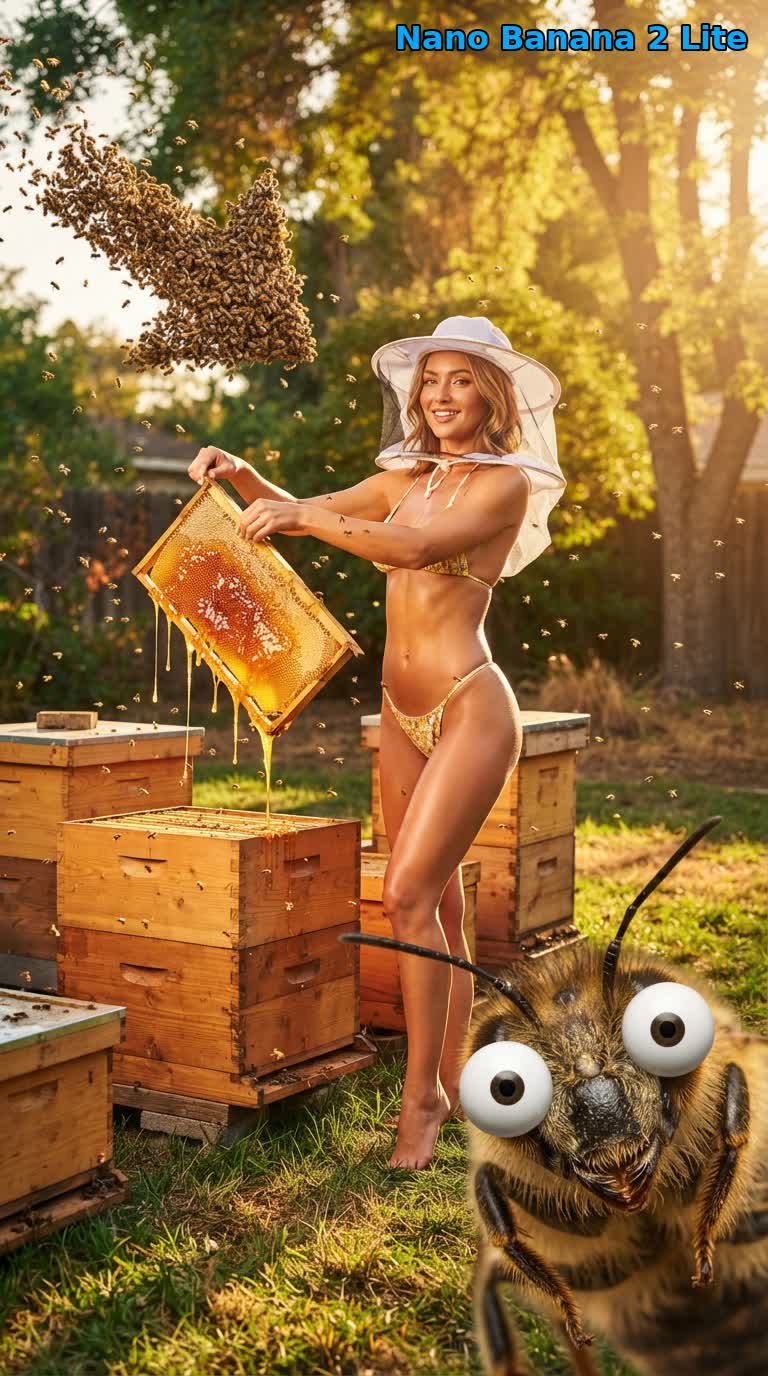
Nano Banana 2 Lite, model mặc định (nguồn): prompt người nuôi ong trong bài so sánh ba model, do model nhanh nhất trong ba tạo ở tỉ lệ 9:16.
Câu hỏi thường gặp
- Có API Nano Banana 2 không? Qua useapi.net thì có: trong Google Flow API,
nano-banana-2tạo ảnh bằng Nano Banana 2.1, phiên bản mà Google Flow đang chạy, trên mọi gói Google AI hoặc tài khoản miễn phí, không thu phí theo ảnh. Nano Banana 2 (Gemini 3.1 Flash Image) có giá $0,067 mỗi ảnh 1K trên Gemini API chính thức của Google (tính đến tháng 11/2026). Đây là một endpoint REST thông thường, không cần dự án Cloud. - Có API Nano Banana Pro không? Qua useapi.net thì có: Nano Banana Pro (Gemini 3 Pro Image) chạy dưới tên
nano-banana-protrên endpoint POST /images, và một request đồng bộ trả về tối đa bốn ảnh, không thu phí theo ảnh. Gemini API chính thức của Google tính $0,134 cho mỗi ảnh Pro (tính đến tháng 11/2026). - API mặc định dùng model nào? Trên useapi.net, mặc định là
nano-banana-2-lite(Gemini 3.1 Flash-Lite Image), dù có hay không có ảnh tham chiếu. Đổi model cho từng request bằng cách đặtmodellànano-banana-2(Nano Banana 2.1) hoặcnano-banana-pro(Gemini 3 Pro Image, chất lượng cao nhất). Cả ba đều nhận tối đa 10 ảnh tham chiếu và có thể upscale lên 2K/4K. Bài Nano Banana 2 Lite vs 2.1 vs Pro cho thấy cả ba trên cùng một prompt. - Google Flow còn Imagen 4 không? Trên useapi.net, model id
imagen-4vẫn dùng được nên code hiện có vẫn chạy. Nhưng Google đã gỡ Imagen khỏi Google Flow vào tháng 7/2026, nên các request đó giờ tạo ảnh bằngnano-banana-2-lite, model ảnh mặc định của Google Flow từ đó đến nay. Muốn chọn model khác, hãy đặtmodellànano-banana-2hoặcnano-banana-pro. - Có cần captcha hay dự án Google Cloud không? Với useapi.net, bạn không cần dự án Google Cloud, cũng không cần tự giải captcha. Google Flow yêu cầu reCAPTCHA cho mỗi ảnh, và worker của useapi.net tự động giải: tài khoản Google Flow đầu tiên của bạn được 300 lượt giải miễn phí bằng key AntiCaptcha, CapSolver và EzCaptcha của chính chúng tôi, sau đó bạn thêm key nhà cung cấp của riêng mình bằng POST /accounts/captcha-providers. Script trong hướng dẫn này không gửi
captchaToken.
Kết luận
Ghé  Discord Server hoặc
 Telegram Channel của chúng tôi cho mọi câu hỏi hỗ trợ.
Xem repo GitHub của chúng tôi với các ví dụ code.
Đăng ở nơi khác
Cũng đăng trên dev.to (tiếng Anh) và chia sẻ trên Bluesky.
Bắt đầu dùng API
Một gói đăng ký $15/tháng dùng được mọi API trên useapi.net: một token cho tất cả dịch vụ. Mỗi dịch vụ bạn kết nối tối đa 3 tài khoản của riêng mình, còn useapi.net lo REST API, cân bằng tải và polling. Cần thêm tài khoản? Mỗi gói đăng ký thêm giá $10/tháng và cho thêm 3 tài khoản ở mỗi dịch vụ.
Đăng ký — $15/tháng Thanh toán bằng tiền mã hóa
Không có thẻ thanh toán quốc tế? Bạn có thể đăng ký bằng tiền mã hóa (thanh toán bằng tiền mã hóa không được hoàn tiền). Giá và các gói số lượng lớn có trên trang đăng ký. Nếu thanh toán qua Stripe, bạn được hoàn tiền toàn bộ trong 14 ngày kể từ lần mua đầu tiên khi có dưới 50 lượt tạo thành công. Đã đăng ký rồi? Hãy đổi số lượng trong Stripe Customer Portal thay vì mua lại.