如何通过 Google Flow API 生成 Nano Banana 2.1 和 Nano Banana Pro 图片
6 分钟阅读 • 2026 年 6 月 15 日(2026 年 11 月 6 日更新)
useapi.net 是第三方 API,与 Google 无关联,也未获得 Google 的认可。
目录
简介
向 useapi.net 的 Google Flow API 发送一次同步 POST 请求,就能拿到最多四张 Nano Banana 2.1、Nano Banana Pro 或 Nano Banana 2 Lite 图片,用的是你自己的 Google Flow 账号。所有 Google AI 订阅都包含图片生成,免费账号也一样,而官方 Gemini API 每张图片收费 $0.034 到 $0.134(截至 2026 年 11 月)。不需要 Google Cloud 项目,也不需要 Gemini API Key。
本指南介绍可用的模型、价格差异、可直接复制的 curl 单次调用流程,以及一个从提示词列表批量生成图片的 Node.js 脚本。想看三个模型在同一提示词下的差别,请看 Nano Banana 模型对比。需要生成视频?请看 Google Flow API 中文教程中的 Veo 3.1 部分。
支持的模型
每个请求用 model 字段选择模型(默认 nano-banana-2-lite)。三个模型在任何 Google AI 订阅上都能用,包括免费账号。
| 模型 ID | 产品名称 | 参考图(图生图) | 宽高比 | 说明 |
|---|---|---|---|---|
nano-banana-2-lite (默认) | Nano Banana 2 Lite / Gemini 3.1 Flash-Lite Image | 最多 10 张 | 16:9、4:3、1:1、3:4、9:16、auto† | 自 2026 年 7 月起是 Google Flow 的默认图片模型。在图生图模式下,如果不指定比例,仍保持 16:9 |
nano-banana-2 | Nano Banana 2.1 | 最多 10 张 | 16:9、4:3、1:1、3:4、9:16、auto† | 图生图模式下默认 auto |
nano-banana-pro | Nano Banana Pro / Gemini 3 Pro Image | 最多 10 张 | 16:9、4:3、1:1、3:4、9:16、auto† | 画质最高的图片模型,图生图模式下默认 auto |
† auto 只在图生图模式下有效(至少传入一个 reference_* 或 character_*),由后端根据第一张参考图确定比例。有多张参考图时,横竖方向不一定一致,所以如果每张图都必须是同一种形状,请明确指定比例。
三个模型都支持 count(1–4)和用于复现结果的 seed。如果省略 model,无论有没有参考图,API 都使用 nano-banana-2-lite。两个已弃用的别名仍然可用:nano-banana 对应 nano-banana-2,imagen-4 对应 nano-banana-2-lite(Google 已于 2026 年 7 月从 Google Flow 中移除 Imagen)。详细说明和各模型的能力见 POST /images 参考文档。
放大到 2K/4K
三个模型生成的图片都可以用 POST /images/upscale 放大:传入图片的 mediaGenerationId,并把 resolution 设为 2k(默认)或 4k。返回结果是 encodedImage 中的 base64。2k 在任何套餐上都能用,包括免费账号。4k 需要 Google AI Ultra,在其他套餐上会在解验证码之前就返回 400 和 4k upscaling is not available for this account,所以不产生任何费用,重试也没有用。两者都不消耗 Flow 积分。
价格
在任何 Google AI 订阅上(包括免费账号),生成图片都不消耗 Flow 积分,useapi.net 也不按图片收费。只有 Omni 1.1 Flash 视频、超过 10 秒的 Omni 1.2 Flash 视频、用 Omni 1.2 延长视频和视频放大需要付费套餐,4k 图片放大需要 Ultra。每个模型在每个套餐上的价格以及与官方 API 的对比,见 Google Flow 价格表。
如何用 curl 生成 Nano Banana 图片
你需要一个 useapi.net API Token 和一个已连接的 Google Flow 账号。图片生成是同步的:一次 POST 会一直等到图片生成完毕(通常 10–20 秒),并在响应中直接返回图片,所以没有需要轮询的 jobid。第二步只是保存结果:从签名 URL 下载,如果没有签名 URL,就使用内联的 base64 图片。
- 提交提示词 —
POST https://api.useapi.net/v1/google-flow/images:
curl -X POST "https://api.useapi.net/v1/google-flow/images" \
  -H "Authorization: Bearer $USEAPI_TOKEN" \
  -H "Content-Type: application/json" \
  -d '{
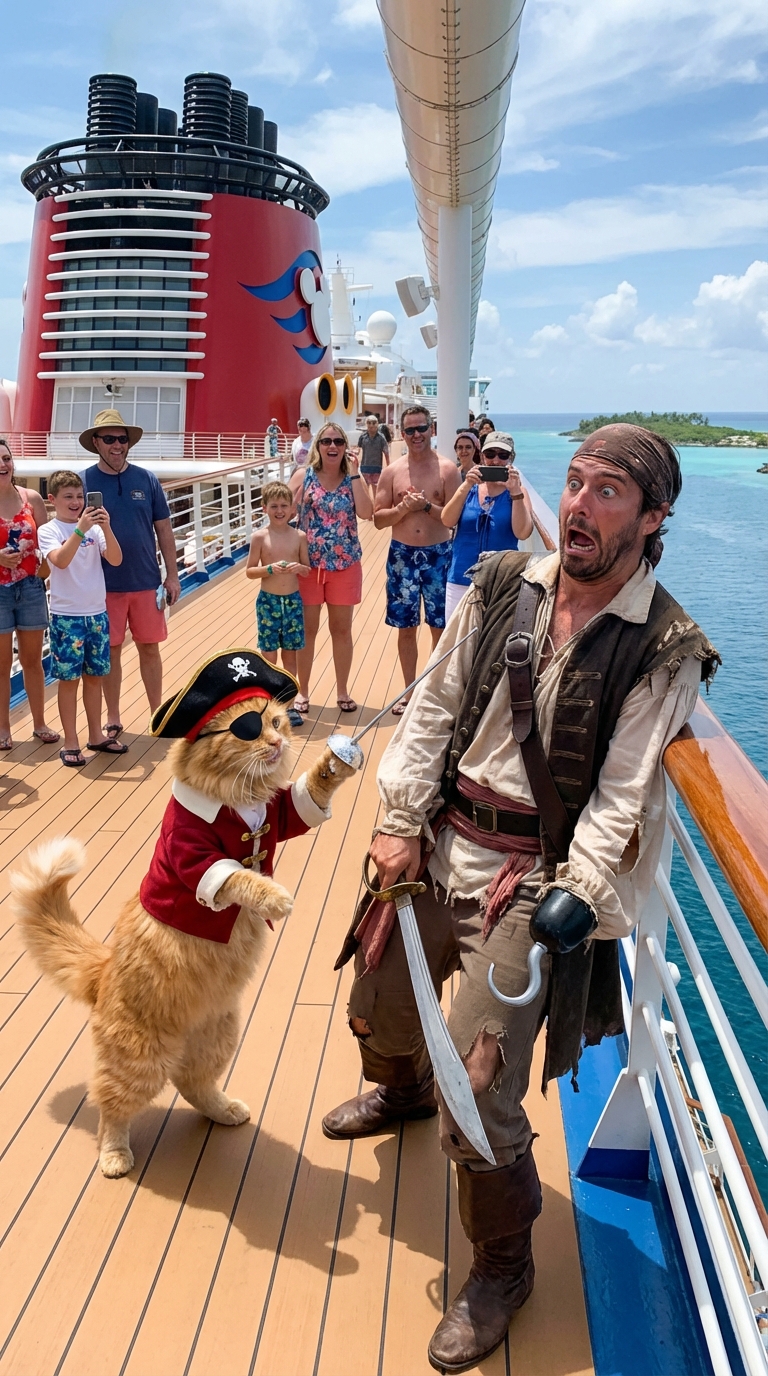
    "prompt": "Cat dressed like a pirate fencing with a real pirate, pirate looks absolutely terrified, this is happening on a deck of the Disney cruise ship",
    "model": "nano-banana-pro",
    "aspectRatio": "16:9",
    "count": 4,
    "seed": 123456
  }' > response.json
调用返回 200 OK,包含 jobId 和一个 media 数组,每张图片一项(count 为 1–4,默认 4)。每张图片的签名下载 URL 位于 media[].image.generatedImage.fifeUrl:
{
  "jobId": "j1731859345678i-u12345-email:jo***@gmail.com-bot:google-flow",
  "media": [
    {
      "image": {
        "generatedImage": {
          "seed": 123456,
          "mediaGenerationId": "user:12345-email:6a6f...-image:...",
          "prompt": "Cat dressed like a pirate fencing with a real pirate, pirate looks absolutely terrified, this is happening on a deck of the Disney cruise ship",
          "fifeUrl": "https://flow-content.google/image/...",
          "aspectRatio": "IMAGE_ASPECT_RATIO_LANDSCAPE"
        }
      }
    }
  ]
}
- 从
fifeUrl下载图片(签名 URL 的有效期有限,请尽快下载)。偶尔fifeUrl会缺失,图片改为以 base64 内联在encodedImage中返回,这时就解码它:
URL=$(jq -r '.media[0].image.generatedImage.fifeUrl // empty' response.json)
if [ -n "$URL" ]; then
  curl -o image_1.jpg "$URL"
else
  jq -r '.media[0].image.generatedImage.encodedImage' response.json | base64 -d > image_1.jpg
fi
每张生成图片的 mediaGenerationId 都可以在之后的请求中作为参考图重复使用,见下文的参考图和角色。
还想要 webhook?在请求体中传入 replyUrl,API 还会把任务状态更新推送到这个 URL。调用本身仍然会等到图片生成完毕。推送内容与 GET /jobs/jobId 的响应格式相同,完成的图片位于 response.media[].image.generatedImage.fifeUrl。
参考图和角色
要用现有图片引导生成,先用 POST /assets/email 上传(原始字节、图片类型的 Content-Type,PNG/JPEG/WebP,最大 20 MB)。在上传响应中,参考图 ID 嵌套在 mediaGenerationId.mediaGenerationId 里,把这个嵌套的字符串作为 reference_1 传回即可(三个模型都最多接受 10 张参考图):
# 1. 上传参考图
curl -X POST "https://api.useapi.net/v1/google-flow/assets/john%40gmail.com" \
  -H "Authorization: Bearer $USEAPI_TOKEN" \
  -H "Content-Type: image/jpeg" \
  --data-binary @reference.jpeg

# 响应(参考图 ID 嵌套在下一层):
# {
#   "mediaGenerationId": {
#     "mediaGenerationId": "user:12345-email:6a6f...-image:ff9aa5cc-..."
#   },
#   "width": 1024, "height": 1024, "email": "jo***@gmail.com"
# }

# 2. 用这张参考图生成
curl -X POST "https://api.useapi.net/v1/google-flow/images" \
  -H "Authorization: Bearer $USEAPI_TOKEN" \
  -H "Content-Type: application/json" \
  -d '{
    "model": "nano-banana-pro",
    "prompt": "Make this photograph look modern",
    "reference_1": "user:12345-email:6a6f...-image:ff9aa5cc-..."
  }'
要在多张图片中保持同一人物形象,可以用 POST /characters 把 1–2 张参考图打包成可复用的角色,然后把它的 character ID 作为 character_1…character_7 传入。角色可以和 reference_* 自由搭配,并共用每个模型的参考图数量上限。你还可以在 prompt 中直接写入 @reference_1 / @character_1 标记,指明每张图片在提示词中的位置,每个内联标记都必须有对应的请求体参数。
用脚本批量生成
找到满意的图片往往要试很多次,手动一次次运行很繁琐。下面的 Node.js 脚本从 prompts.json 读取提示词列表,上传所需的参考图,逐个提交请求,并下载返回的每一张图片,这样你可以一次排好一批,回头再挑出最好的。由于 POST /images 是同步的,脚本会在每次调用返回后立即保存结果。
你需要 Node.js v21 或更高版本。把 prompts.json 和 google-flow-images.mjs 放在同一个文件夹,运行 node ./google-flow-images.mjs API_TOKEN EMAIL,其中 API_TOKEN 是你的 useapi.net API Token,EMAIL 是已连接的 Google Flow 账号的邮箱。脚本会按邮箱自动查找账号,并在提交前检查它的 health 字段。
想克隆到本地运行?完整的 google-flow-images.mjs 和 prompts.json 在 GitHub 的 useapi/google-flow-api 中。
展开 prompts.json
[
    {
        "prompt": "By default the nano-banana-2-lite model generates 4 image variations at 16:9."
    },
    {
        "model": "nano-banana-pro",
        "aspectRatio": "1:1",
        "count": 2,
        "seed": 123456,
        "prompt": "Nano Banana Pro (Gemini 3 Pro Image), two square variations. For all parameters see https://useapi.net/docs/api-google-flow-v1/post-google-flow-images"
    },
    {
        "model": "nano-banana-2",
        "aspectRatio": "auto",
        "reference_1": "./reference_image.jpeg",
        "prompt": "Image-to-image: pass a local reference file as reference_1 (uploaded automatically). auto aspect ratio derives from the first reference. All three models accept up to 10 references."
    },
    {
        "model": "nano-banana-2-lite",
        "aspectRatio": "9:16",
        "count": 4,
        "prompt": "Nano Banana 2 Lite portrait. Other models (nano-banana-2, nano-banana-pro) are selectable via the model field — see the POST /images docs."
    }
]
展开 google-flow-images.mjs 脚本
/*

Script version 1.2, September 11, 2026

Script to batch-generate images using prompts with the Google Flow API v1 by useapi.net 🚀
Uses the synchronous POST /images endpoint (default model: nano-banana-2-lite) and saves each image from fifeUrl, or from encodedImage when fifeUrl is absent.
For more details visit https://useapi.net/docs/api-google-flow-v1/post-google-flow-images

Installation Instructions:
==========================

You need Node.js v21 or newer installed to run this script. Download and install Node.js from:

- Windows, macOS, Linux: https://nodejs.org/

After installation, verify by running the following command in a terminal:

   node -v

Running the Script:
===================

Usage: node google-flow-images.mjs <API_TOKEN> <EMAIL> [PROMPTS_FILE]

Replace API_TOKEN with your actual useapi.net API token, see https://useapi.net/docs/start-here/setup-useapi
Replace EMAIL with configured Google Flow email account, see https://useapi.net/docs/start-here/setup-google-flow
If optional PROMPTS_FILE not provided prompts.json will be used.

Example:
--------

node google-flow-images.mjs user:1234-abcdefhijklmnopqrstuv [email protected]

This command executes the script using API token user:1234-abcdefhijklmnopqrstuv with [email protected] Google Flow account email.

Changelog:
==========

- June 15, 2026: Initial release.
- September 10, 2026: Default model is now nano-banana-2-lite (Google removed Imagen from Flow, and imagen-4 now maps to nano-banana-2-lite). Saves encodedImage when fifeUrl is absent, and accepts .jpg reference images.
- September 11, 2026: A prompt whose reference_* file fails to upload is skipped and logged to google-flow-images_errors.txt instead of being submitted without that reference. Writes a downloaded image only once it has been fully received, so a failed download leaves no partial file for the next run to skip as "already exists".

*/

import fs from 'fs/promises';
import { writeFile } from 'node:fs/promises';


// Constants
const ERRORS_FILE = 'google-flow-images_errors.txt';
const DEFAULT_PROMPTS_FILE = 'prompts.json';
const DEFAULT_MODEL = 'nano-banana-2-lite';
const SLEEP_429 = 30 * 1000; // in milliseconds

const urlAccounts = 'https://api.useapi.net/v1/google-flow/accounts';
const urlImages = 'https://api.useapi.net/v1/google-flow/images';
const urlUploadAsset = 'https://api.useapi.net/v1/google-flow/assets/';

// Google Flow accepts png, jpeg and webp for reference images.
const supportedFileExtensions = ['png', 'jpg', 'jpeg', 'webp'];

// reference_1 .. reference_10 are accepted by POST /images.
const referenceParams = Array.from({ length: 10 }, (_, i) => `reference_${i + 1}`);

// { filename: mediaGenerationId }
const uploadedFiles = {};

// Utility to sleep for given milliseconds
const sleep = (ms) => new Promise((resolve) => setTimeout(resolve, ms));

// Function to fetch configured Google Flow API accounts
async function fetchAccounts(apiToken) {
    const response = await fetch(urlAccounts, {
        headers: {
            'Accept': 'application/json',
            'Authorization': `Bearer ${apiToken}`
        }
    });

    if (!response.ok) {
        console.error(`⛔ Error fetching accounts (HTTP ${response.status}): ${response.statusText}`);
        process.exit(1);
    }

    return response.json();
}

const elapsedTimeSec = (start) => (Date.now() - start) / 1000;

// Map a file extension to the Content-Type required by POST /assets
const contentTypeForExt = (ext) => ext === 'png' ? 'image/png' : ext === 'webp' ? 'image/webp' : 'image/jpeg';

async function uploadAsset(apiToken, email, filename) {

    // Check if already uploaded
    if (uploadedFiles.hasOwnProperty(filename))
        return uploadedFiles[filename];

    const startTime = Date.now();

    console.log(`⬆️  Account ${email} uploading file…`, filename);

    const body = new Blob([await fs.readFile(filename)]);

    const fileExt = filename.split('.').pop().toLowerCase();

    const response = await fetch(`${urlUploadAsset}${encodeURIComponent(email)}`, {
        method: 'POST',
        headers: {
            'Accept': 'application/json',
            'Authorization': `Bearer ${apiToken}`,
            'Content-Type': contentTypeForExt(fileExt)
        },
        body
    });

    if (response.ok) {
        const json = await response.json();
        // POST /assets returns the reference id nested as mediaGenerationId.mediaGenerationId
        const mediaGenerationId = json?.mediaGenerationId?.mediaGenerationId;
        console.log(`🆗 mediaGenerationId (${elapsedTimeSec(startTime)} sec)`, mediaGenerationId);
        uploadedFiles[filename] = mediaGenerationId;
    }
    else {
        console.error(`❗ Unable to upload file HTTP ${response.status} (${elapsedTimeSec(startTime)} sec)`, await response.text());
        // Do not attempt to upload failed file again
        uploadedFiles[filename] = undefined;
    }

    return uploadedFiles[filename];
}

// Download a single image from its signed fifeUrl.
async function downloadImage(url, filename) {
    try {
        await fs.access(filename);
        console.log(`⚠️ ${filename} already exists. Skipping download.`);
        return;
    } catch {
        // File does not exist, proceed with downloading
    }

    if (!url) {
        console.error(`🛑 No fifeUrl for ${filename}`);
        return;
    }

    console.log(`✅ Downloading ${url} to ${filename}`);
    try {
        const imageResponse = await fetch(url);
        if (!imageResponse.ok) {
            console.error(`⛔ Unable to download ${filename} (HTTP ${imageResponse.status})`, url);
            return;
        }
        // Read the whole body before creating the file, so a failed download leaves no
        // partial file behind for the next run to skip as "already exists".
        const data = Buffer.from(await imageResponse.arrayBuffer());
        await writeFile(filename, data);
    } catch (err) {
        console.error(`⛔ Error during download: ${err}`);
    }
}

// Submit a single prompt to the synchronous POST /images endpoint and download the results.
async function submitImage(apiToken, email, prompt, index) {
    const { model, prompt: text } = prompt;

    const useModel = model ?? DEFAULT_MODEL;

    console.log(`🚀 ${useModel} » Prompt #${index} • account ${email} …`);

    // Build the request body, uploading any local reference_* file to a mediaGenerationId first.
    const body = { model: useModel, email, prompt: text };

    for (const key of ['aspectRatio', 'count', 'seed'])
        if (prompt[key] !== undefined) body[key] = prompt[key];

    for (const refKey of referenceParams) {
        const value = prompt[refKey];
        if (value)
            body[refKey] = await uploadAsset(apiToken, email, value);
    }

    // A reference that failed to upload would be left out of the body, and the prompt would still be
    // generated (and charged) without it. Skip the prompt instead. uploadAsset remembers the failed file,
    // so a later prompt using it is skipped too, without another upload attempt.
    const failedUploads = referenceParams.filter(refKey => prompt[refKey] && !body[refKey]);
    for (const refKey of failedUploads) {
        console.error(`🛑 Prompt #${index} skipped: ${refKey} ${prompt[refKey]} failed to upload`);
        await fs.appendFile(ERRORS_FILE, `Upload failed for ${refKey} ${prompt[refKey]},#${index}:${text}\n`);
    }
    if (failedUploads.length)
        return;

    while (true) {
        const response = await fetch(urlImages, {
            method: 'POST',
            headers: {
                'Accept': 'application/json',
                'Content-Type': 'application/json',
                'Authorization': `Bearer ${apiToken}`
            },
            body: JSON.stringify(body)
        });

        const responseText = await response.text();

        if (response.status == 200) {
            const json = JSON.parse(responseText);
            const media = json?.media ?? [];

            if (media.length == 0)
                console.error(`🛑 200 OK but no media for prompt #${index}:\n${text}\n`);

            // count > 1 returns multiple images in the media array.
            for (let i = 0; i < media.length; i++) {
                const img = media[i]?.image?.generatedImage;
                const filename = `google-flow_${index}_${i + 1}.jpg`;
                // fifeUrl is normally present. When it is absent the image arrived inline as base64 in encodedImage.
                if (!img?.fifeUrl && img?.encodedImage)
                    await fs.writeFile(filename, Buffer.from(img.encodedImage, 'base64'));
                else
                    await downloadImage(img?.fifeUrl, filename);
            }
            return 200;
        }

        switch (response.status) {
            case 429:
                console.log(`🔄️ Retry on HTTP ${response.status}`, responseText);
                await sleep(SLEEP_429);
                break;
            case 503:
                console.log(`🔄️ Service unavailable, retry on HTTP ${response.status}`, responseText);
                await sleep(SLEEP_429);
                break;
            case 402:
                console.log(`🛑 No subscription / insufficient credits`, responseText);
                await fs.appendFile(ERRORS_FILE, `${response.status},#${index}:${text}\n`);
                process.exit(1);
            case 400:
            case 500:
                console.log(`🛑 Rejected (validation or content moderation)`, responseText);
                await fs.appendFile(ERRORS_FILE, `${response.status},#${index}:${text}\n`);
                return response.status;
            default:
                console.log(`❗ FAILED with HTTP ${response.status}`, responseText);
                await fs.appendFile(ERRORS_FILE, `${response.status},#${index}:${text}\n`);
                return response.status;
        }
    }
}

// Main function
async function main() {
    const apiToken = process.argv[2];
    const email = process.argv[3];
    const promptFile = process.argv[4] || DEFAULT_PROMPTS_FILE;

    if (!apiToken || !email) {
        console.error('Usage: node google-flow-images.mjs <API_TOKEN> <EMAIL> [PROMPTS_FILE]');
        process.exit(1);
    }

    console.info('Script v1.2');
    console.info('Node version is: ' + process.version);

    const start = new Date();
    try {
        console.info('START EXECUTION', start);
        await execute(apiToken, email, promptFile);
    } catch (error) {
        console.error('⛔ Error during execution:', error.stack || error);
    } finally {
        console.info('COMPLETED', new Date());
        console.info('EXECUTION ELAPSED', diffInMinutesAndSeconds(start, new Date()));
    }
}

async function execute(apiToken, email, promptFile) {
    const accounts = await fetchAccounts(apiToken);

    console.info(`Configured Google Flow API accounts (${Object.keys(accounts).length}):`, Object.keys(accounts).join(', '));

    if (Object.keys(accounts).length <= 0) {
        console.error(`⛔ No configured Google Flow accounts found. Please refer to https://useapi.net/docs/start-here/setup-google-flow`);
        process.exit(1);
    }

    if (!accounts[email]) {
        console.error(`⛔ Account ${email} not found. Please refer to https://useapi.net/docs/start-here/setup-google-flow`);
        process.exit(1);
    }

    if (accounts[email].health && accounts[email].health !== 'OK') {
        console.error(`⛔ Account ${email} health is '${accounts[email].health}'. Please resolve and update the account, see https://useapi.net/docs/start-here/setup-google-flow`);
        process.exit(1);
    }

    const promptData = await fs.readFile(promptFile, 'utf8');
    const prompts = JSON.parse(promptData);
    console.log(`Total number of prompts to process`, prompts.length);

    let warnings = [];

    // Parameters accepted by this script for the POST /images endpoint.
    // See https://useapi.net/docs/api-google-flow-v1/post-google-flow-images for every model's full parameter set.
    const supportedParams = ['model', 'prompt', 'aspectRatio', 'count', 'seed', ...referenceParams];

    const invalidKeys = (prompt) => Object.keys(prompt).filter(key => !key.startsWith('__') && !supportedParams.includes(key))

    for (let i = 1; i <= prompts.length; i++) {
        const prompt = prompts[i - 1];
        const { prompt: text } = prompt;

        const validateImage = async (file) => {
            if (file) {
                try {
                    await fs.access(file);
                } catch {
                    warnings.push(`⚠️  Image '${file}' does not exist. Prompt ${i}`);
                }

                const ext = file.split('.').pop().toLowerCase();

                if (!supportedFileExtensions.includes(ext))
                    warnings.push(`⚠️  Image ${file} extension ${ext} not supported. Prompt ${i}`);
            }
        };

        const notSupported = invalidKeys(prompt);
        if (notSupported.length)
            warnings.push(`⚠️  Following params not supported: ${notSupported.join(',')}. Prompt ${i}`);

        if (!text)
            warnings.push(`⚠️  prompt is required. Prompt ${i}`);

        await Promise.all(referenceParams.map(refKey => validateImage(prompt[refKey])));
    }

    if (warnings.length > 0) {
        warnings.forEach(warning => console.warn(warning));
        console.error(`⛔ Execution stopped due to warnings.`);
        process.exit(1);
    }

    for (let i = 0; i < prompts.length; i++)
        await submitImage(apiToken, email, prompts[i], i + 1);
}

function diffInMinutesAndSeconds(date1, date2) {
    const diffInSeconds = Math.floor((date2 - date1) / 1000);
    return `${Math.floor(diffInSeconds / 60)} minutes ${diffInSeconds % 60} seconds`;
};

main();
示例
以下是通过同一个 Google Flow API 用 Nano Banana Pro 和 Nano Banana 2 Lite 生成的真实图片,直接取自我们的博客和模型对比。
Nano Banana Pro 文生图(来源):“Cat dressed like a pirate fencing with a real pirate… on a Disney cruise ship.”
Nano Banana Pro 使用 5 张参考图(来源):把五张单人肖像合成一张“K-Pop group victory celebration”合影。

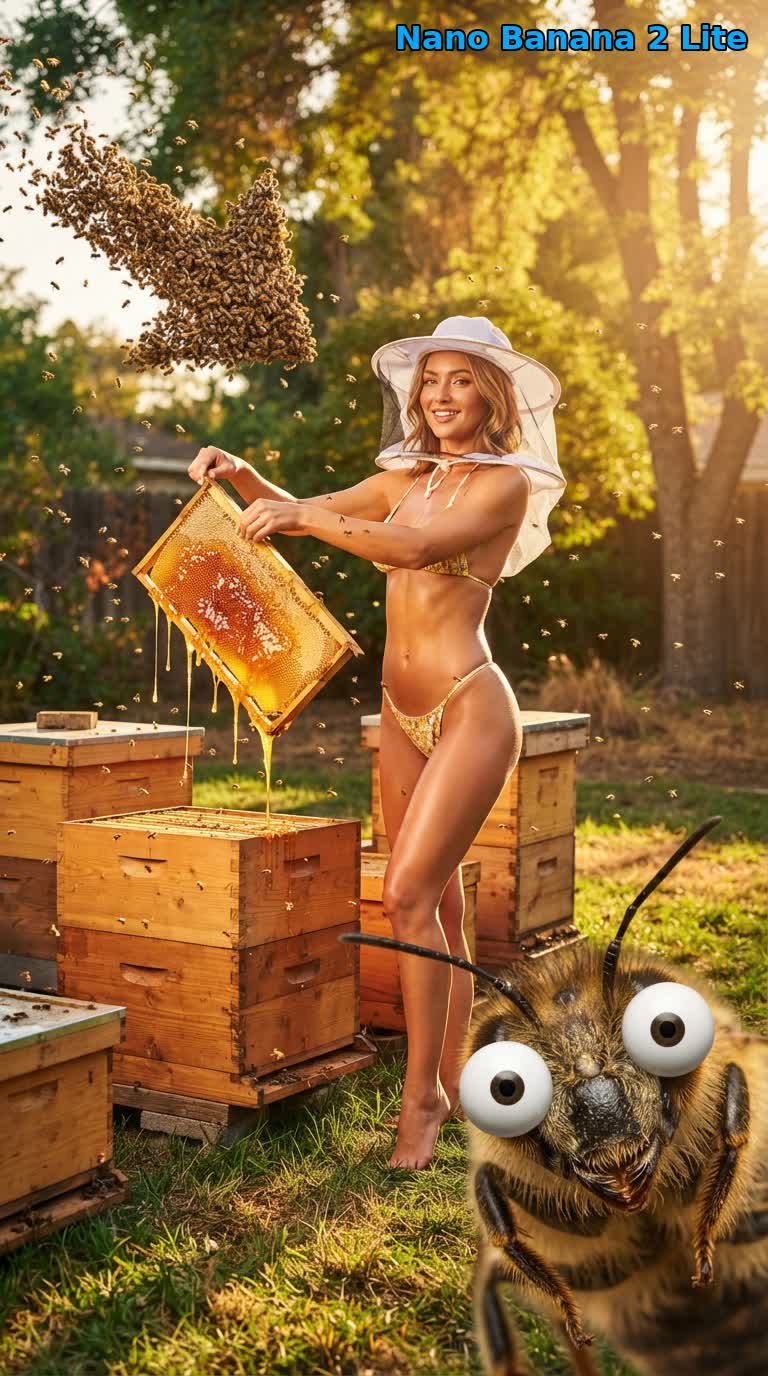
Nano Banana 2 Lite,默认模型(来源):三模型对比中的养蜂人提示词,由三者中速度最快的这个模型以 9:16 生成。
常见问题
- 有 Nano Banana 2 API 吗? 通过 useapi.net 就有:在 Google Flow API 中,
nano-banana-2用 Nano Banana 2.1(Google Flow 使用的版本)生成图片,任何 Google AI 订阅或免费账号都能用,不按图片收费。在 Google 官方的 Gemini API 上,Nano Banana 2(Gemini 3.1 Flash Image)每张 1K 图片 $0.067(截至 2026 年 11 月)。它是标准的 REST 接口,不需要 Cloud 项目。 - 有 Nano Banana Pro API 吗? 通过 useapi.net 就有:Nano Banana Pro(Gemini 3 Pro Image)在 POST /images 接口上以
nano-banana-pro运行,一次同步请求最多返回四张图片,不按图片收费。Google 官方的 Gemini API 每张 Pro 图片收费 $0.134(截至 2026 年 11 月)。 - API 默认使用哪个模型? 在 useapi.net 上,无论有没有参考图,默认都是
nano-banana-2-lite(Gemini 3.1 Flash-Lite Image)。每个请求都可以把model设为nano-banana-2(Nano Banana 2.1)或nano-banana-pro(Gemini 3 Pro Image,画质最高)来切换。三个模型都最多接受 10 张参考图,也都可以放大到 2K/4K。Nano Banana 2 Lite vs 2.1 vs Pro展示了三个模型在同一提示词下的效果。 - Google Flow 里还能用 Imagen 4 吗? 在 useapi.net 上,
imagen-4这个模型 ID 仍然可用,现有代码可以继续运行。但 Google 已于 2026 年 7 月从 Google Flow 中移除 Imagen,这些请求现在改用nano-banana-2-lite生成图片,它从那时起就是 Google Flow 的默认图片模型。要换用其他模型,把model设为nano-banana-2或nano-banana-pro。 - 需要验证码或 Google Cloud 项目吗? 通过 useapi.net,既不需要 Google Cloud 项目,也不需要自己处理验证码。Google Flow 每生成一张图片都要求 reCAPTCHA,useapi.net 的 worker 会自动解决:你的第一个 Google Flow 账号自带 300 次免费解码,使用我们自己的 AntiCaptcha、CapSolver 和 EzCaptcha 密钥,之后再用 POST /accounts/captcha-providers 添加你自己的服务商密钥。本指南中的脚本不发送
captchaToken。
结语
有问题欢迎加入我们的  Discord 服务器 或
 Telegram 频道。
代码示例见我们的 GitHub 仓库。
其他发布平台
本文英文版也发布在 dev.to,并分享到了 Bluesky。
开始使用
每月 15 美元的订阅即可使用 useapi.net 上的所有 API:一个 Token,所有服务。每个服务最多绑定 3 个你自己的账号,useapi.net 负责 REST 接口、负载均衡和轮询。需要更多账号?每增加一个订阅每月 10 美元,每个服务再多 3 个账号。
没有国际信用卡?可以用加密货币订阅(加密货币付款不退款)。价格与批量方案见订阅页面。用 Stripe 付款,首次购买 14 天内、且成功生成少于 50 次可全额退款。已经订阅?请在 Stripe 客户门户 修改数量,无需重新购买。