วิธีสร้างภาพ Nano Banana 2.1 และ Nano Banana Pro ผ่าน Google Flow API
อ่าน 6 นาที • 15 มิถุนายน 2026 (6 พฤศจิกายน 2026)
useapi.net เป็น API ของบุคคลที่สาม (third-party) ไม่มีส่วนเกี่ยวข้องกับ Google และไม่ได้รับการรับรองจาก Google
สารบัญ
- บทนำ
- โมเดลที่รองรับ
- ราคา
- วิธีสร้างภาพ Nano Banana ด้วย curl
- ภาพอ้างอิงและตัวละคร
- สร้างภาพเป็นชุดด้วยสคริปต์
- ตัวอย่าง
- คำถามที่พบบ่อย
- สรุป
บทนำ
ส่ง POST แบบซิงโครนัสครั้งเดียวไปยัง Google Flow API ของ useapi.net ก็จะได้ภาพจาก Nano Banana 2.1, Nano Banana Pro หรือ Nano Banana 2 Lite กลับมาสูงสุดสี่ภาพ โดยสร้างด้วยบัญชี Google Flow ของคุณเอง การสร้างภาพรวมอยู่ในทุกแพ็กเกจ Google AI รวมถึงบัญชีฟรี ขณะที่ Gemini API ทางการคิดภาพละ $0.034 ถึง $0.134 (ข้อมูล ณ พฤศจิกายน 2026) ไม่ต้องมีโปรเจกต์ Google Cloud และไม่ต้องมี Gemini API key
คู่มือนี้อธิบายโมเดลที่ใช้ได้ ส่วนต่างของราคา ขั้นตอนสร้างภาพด้วยการเรียกครั้งเดียวพร้อมคำสั่ง curl ที่คัดลอกไปใช้ได้ทันที และสคริปต์ Node.js ที่รันได้จริงสำหรับสร้างภาพเป็นชุดจากรายการพรอมต์ อยากรู้ว่าสามโมเดลต่างกันอย่างไรเมื่อใช้พรอมต์เดียวกัน ดูการเปรียบเทียบโมเดล Nano Banana ถ้าต้องการวิดีโอ ดูคู่มือ Veo 3.1 ซึ่งเป็นบทความคู่กัน
โมเดลที่รองรับ
เลือกโมเดลในแต่ละคำขอด้วยฟิลด์ model (ค่าเริ่มต้นคือ nano-banana-2-lite) ทั้งสามโมเดลใช้ได้กับทุกแพ็กเกจ Google AI รวมถึงบัญชีฟรี
| Model id | ชื่อทางการตลาด | ภาพอ้างอิง (I2I) | อัตราส่วนภาพ | หมายเหตุ |
|---|---|---|---|---|
nano-banana-2-lite (ค่าเริ่มต้น) | Nano Banana 2 Lite / Gemini 3.1 Flash-Lite Image | สูงสุด 10 | 16:9, 4:3, 1:1, 3:4, 9:16, auto† | โมเดลภาพเริ่มต้นของ Google Flow ตั้งแต่กรกฎาคม 2026 ในโหมดภาพเป็นภาพจะยังเป็น 16:9 หากไม่ได้ระบุอัตราส่วน |
nano-banana-2 | Nano Banana 2.1 | สูงสุด 10 | 16:9, 4:3, 1:1, 3:4, 9:16, auto† | ค่าเริ่มต้นเป็น auto ในโหมดภาพเป็นภาพ |
nano-banana-pro | Nano Banana Pro / Gemini 3 Pro Image | สูงสุด 10 | 16:9, 4:3, 1:1, 3:4, 9:16, auto† | โมเดลภาพคุณภาพสูงสุด ค่าเริ่มต้นเป็น auto ในโหมดภาพเป็นภาพ |
† auto ใช้ได้เฉพาะในโหมดภาพเป็นภาพ (ส่ง reference_* หรือ character_* อย่างน้อยหนึ่งรายการ) โดยแบ็กเอนด์จะกำหนดอัตราส่วนจากภาพอ้างอิงภาพแรก เมื่อมีภาพอ้างอิงหลายภาพ จะไม่รับประกันแนวตั้งหรือแนวนอนของภาพ จึงควรระบุอัตราส่วนให้ชัดเจนเมื่อทุกภาพต้องออกมาเป็นรูปทรงเดียวกัน
ทั้งสามโมเดลรองรับ count (1–4) และ seed เพื่อให้สร้างผลลัพธ์เดิมซ้ำได้ ถ้าไม่ระบุ model API จะใช้ nano-banana-2-lite ไม่ว่าจะมีภาพอ้างอิงหรือไม่ ชื่อแทน (alias) ที่เลิกใช้แล้วสองชื่อยังใช้ได้อยู่ คือ nano-banana จะชี้ไปที่ nano-banana-2 และ imagen-4 จะชี้ไปที่ nano-banana-2-lite (Google นำ Imagen ออกจาก Google Flow ในเดือนกรกฎาคม 2026) รายละเอียดและความสามารถของแต่ละโมเดลอยู่ในเอกสารอ้างอิง POST /images
อัปสเกลเป็น 2K/4K
ภาพที่สร้างด้วยโมเดลใดก็ได้ในสามโมเดลนี้อัปสเกลได้ด้วย POST /images/upscale โดยส่ง mediaGenerationId ของภาพ และ resolution เป็น 2k (ค่าเริ่มต้น) หรือ 4k การตอบกลับเป็น base64 ใน encodedImage ส่วน 2k ใช้ได้กับทุกแพ็กเกจ รวมถึงบัญชีฟรี ส่วน 4k ต้องใช้ Google AI Ultra และในแพ็กเกจอื่นจะตอบ 400 พร้อม 4k upscaling is not available for this account ก่อนแก้ captcha จึงไม่เสียค่าใช้จ่าย และลองใหม่ก็ไม่ช่วย ทั้งสองแบบไม่ใช้เครดิต Flow
ราคา
การสร้างภาพไม่ใช้เครดิต Flow ในทุกแพ็กเกจ Google AI รวมถึงบัญชีฟรี และ useapi.net ไม่คิดค่าบริการต่อภาพ ต้องใช้แพ็กเกจแบบชำระเงินเฉพาะวิดีโอ Omni 1.1 Flash, วิดีโอ Omni 1.2 Flash ที่ยาวกว่า 10 วินาที, การต่อความยาววิดีโอด้วย Omni 1.2 และการอัปสเกลวิดีโอ ส่วนการอัปสเกลภาพ 4k ต้องใช้ Ultra ราคาของทุกโมเดลในทุกแพ็กเกจเทียบกับ API ทางการ ดูได้ในตารางราคา Google Flow
วิธีสร้างภาพ Nano Banana ด้วย curl
คุณต้องมี API token ของ useapi.net และบัญชี Google Flow ที่เชื่อมต่อแล้ว การสร้างภาพเป็นแบบซิงโครนัส คำขอ POST ครั้งเดียวจะรอจนภาพเสร็จ (ปกติ 10–20 วินาที) แล้วส่งภาพกลับมาในการตอบกลับ จึงไม่มี jobid ที่ต้องโพล ขั้นที่สองเป็นแค่การบันทึกผลลัพธ์ จาก URL ที่มีลายเซ็น หรือถ้าไม่มี URL นั้น ก็จากภาพ base64 ที่แนบมาในการตอบกลับ
- ส่งพรอมต์ —
POST https://api.useapi.net/v1/google-flow/images:
curl -X POST "https://api.useapi.net/v1/google-flow/images" \
  -H "Authorization: Bearer $USEAPI_TOKEN" \
  -H "Content-Type: application/json" \
  -d '{
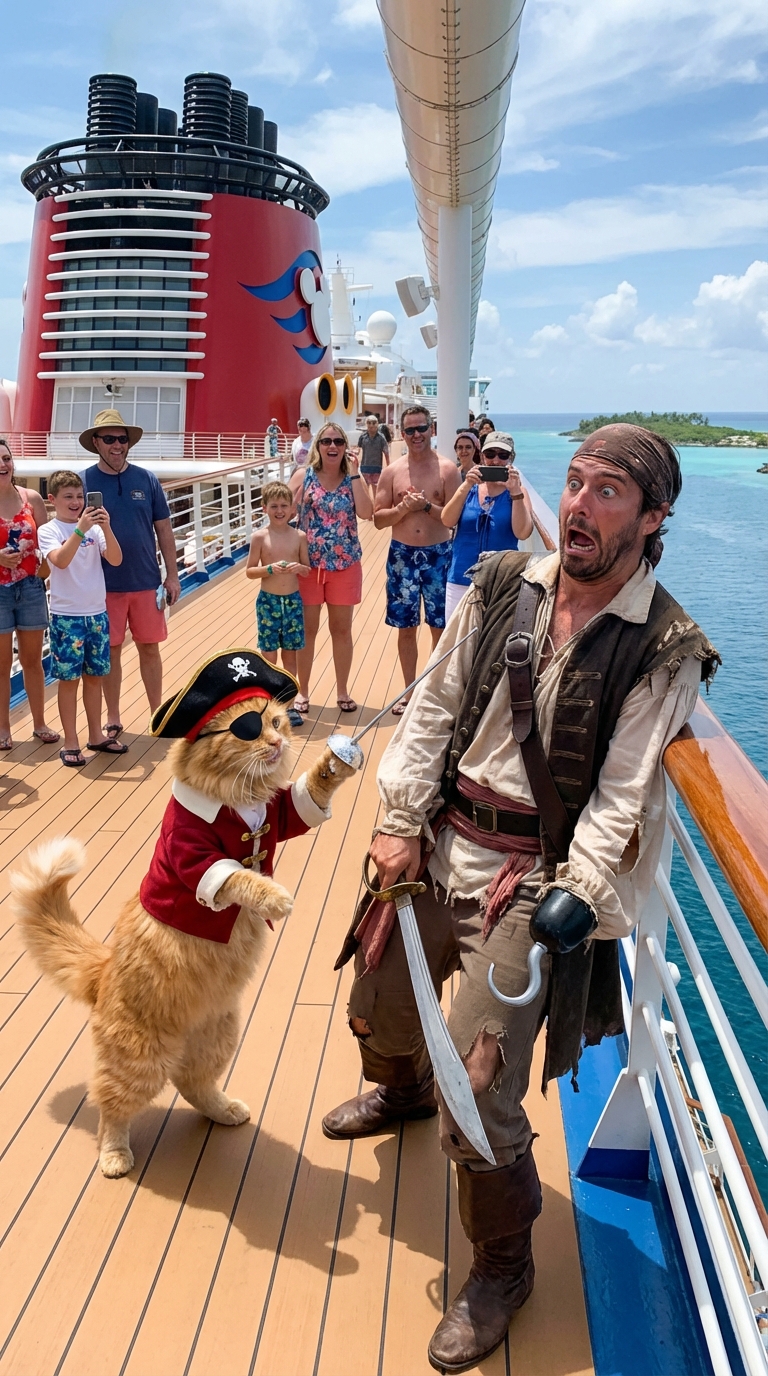
    "prompt": "Cat dressed like a pirate fencing with a real pirate, pirate looks absolutely terrified, this is happening on a deck of the Disney cruise ship",
    "model": "nano-banana-pro",
    "aspectRatio": "16:9",
    "count": 4,
    "seed": 123456
  }' > response.json
การเรียกจะตอบ 200 OK พร้อม jobId และอาร์เรย์ media ภาพละหนึ่งรายการ (count เป็น 1–4 ค่าเริ่มต้นคือ 4) URL ดาวน์โหลดที่มีลายเซ็นของแต่ละภาพอยู่ที่ media[].image.generatedImage.fifeUrl:
{
  "jobId": "j1731859345678i-u12345-email:jo***@gmail.com-bot:google-flow",
  "media": [
    {
      "image": {
        "generatedImage": {
          "seed": 123456,
          "mediaGenerationId": "user:12345-email:6a6f...-image:...",
          "prompt": "Cat dressed like a pirate fencing with a real pirate, pirate looks absolutely terrified, this is happening on a deck of the Disney cruise ship",
          "fifeUrl": "https://flow-content.google/image/...",
          "aspectRatio": "IMAGE_ASPECT_RATIO_LANDSCAPE"
        }
      }
    }
  ]
}
- ดาวน์โหลดภาพจาก
fifeUrl(URL ที่มีลายเซ็นใช้ได้ในเวลาจำกัด ควรดาวน์โหลดทันที) บางครั้งไม่มีfifeUrlมา และภาพจะถูกส่งกลับเป็น base64 ในencodedImageแทน กรณีนั้นให้ถอดรหัสจากฟิลด์นี้:
URL=$(jq -r '.media[0].image.generatedImage.fifeUrl // empty' response.json)
if [ -n "$URL" ]; then
  curl -o image_1.jpg "$URL"
else
  jq -r '.media[0].image.generatedImage.encodedImage' response.json | base64 -d > image_1.jpg
fi
mediaGenerationId ของแต่ละภาพที่สร้างแล้วนำกลับมาใช้เป็นภาพอ้างอิงในคำขอถัดไปได้ ดูภาพอ้างอิงและตัวละคร ด้านล่าง
ต้องการ webhook ด้วยหรือไม่ ส่ง replyUrl ใน body ของคำขอ แล้ว API จะส่งอัปเดตสถานะงานไปยัง URL นั้นด้วย ตัวการเรียกเองยังคงรอจนได้ภาพ payload มีรูปแบบเดียวกับการตอบกลับของ GET /jobs/jobId โดยภาพที่เสร็จแล้วอยู่ที่ response.media[].image.generatedImage.fifeUrl
ภาพอ้างอิงและตัวละคร
หากต้องการกำหนดทิศทางของภาพด้วยภาพที่มีอยู่แล้ว ให้อัปโหลดภาพนั้นก่อนด้วย POST /assets/email (ไบต์ดิบ, Content-Type แบบภาพ, PNG/JPEG/WebP ไม่เกิน 20 MB) การตอบกลับของการอัปโหลดจะซ้อน id ของภาพอ้างอิงไว้ที่ mediaGenerationId.mediaGenerationId สตริงที่ซ้อนอยู่นี้คือค่าที่ส่งกลับไปเป็น reference_1 (ทั้งสามโมเดลรับภาพอ้างอิงได้สูงสุด 10 ภาพ):
# 1. อัปโหลดภาพอ้างอิง
curl -X POST "https://api.useapi.net/v1/google-flow/assets/john%40gmail.com" \
  -H "Authorization: Bearer $USEAPI_TOKEN" \
  -H "Content-Type: image/jpeg" \
  --data-binary @reference.jpeg

# การตอบกลับ: id ของภาพอ้างอิงซ้อนอยู่ลึกลงไปหนึ่งชั้น:
# {
#   "mediaGenerationId": {
#     "mediaGenerationId": "user:12345-email:6a6f...-image:ff9aa5cc-..."
#   },
#   "width": 1024, "height": 1024, "email": "jo***@gmail.com"
# }

# 2. สร้างภาพโดยใช้ภาพอ้างอิงนั้น
curl -X POST "https://api.useapi.net/v1/google-flow/images" \
  -H "Authorization: Bearer $USEAPI_TOKEN" \
  -H "Content-Type: application/json" \
  -d '{
    "model": "nano-banana-pro",
    "prompt": "Make this photograph look modern",
    "reference_1": "user:12345-email:6a6f...-image:ff9aa5cc-..."
  }'
หากต้องการให้ตัวบุคคลเหมือนเดิมในหลายภาพ ให้รวมภาพอ้างอิง 1–2 ภาพเป็นตัวละครที่ใช้ซ้ำได้ด้วย POST /characters แล้วส่ง id ของ character เป็น character_1…character_7 ตัวละครใช้ร่วมกับ reference_* ได้อย่างอิสระ และใช้โควตาภาพอ้างอิงต่อโมเดลร่วมกัน คุณยังใส่เครื่องหมาย @reference_1 / @character_1 ลงใน prompt ได้โดยตรงเพื่อระบุว่าแต่ละภาพใช้ตรงไหน โดยเครื่องหมายแต่ละตัวต้องมีพารามิเตอร์ใน body ที่ตรงกัน
สร้างภาพเป็นชุดด้วยสคริปต์
กว่าจะได้ภาพที่ใช่ต้องลองหลายครั้ง และการรันทีละครั้งด้วยมือก็น่าเบื่อ สคริปต์ Node.js ด้านล่างอ่านรายการพรอมต์จาก prompts.json อัปโหลดภาพอ้างอิง ส่งคำขอทีละรายการ และดาวน์โหลดทุกภาพที่ได้กลับมา คุณจึงตั้งคิวไว้เป็นชุดแล้วค่อยกลับมาเลือกภาพที่ดีที่สุดได้ เนื่องจาก POST /images เป็นแบบซิงโครนัส สคริปต์จึงบันทึกผลลัพธ์แต่ละรายการทันทีที่การเรียกเสร็จ
คุณต้องมี Node.js v21 ขึ้นไป วาง prompts.json และ google-flow-images.mjs ไว้ในโฟลเดอร์เดียวกัน แล้วรัน node ./google-flow-images.mjs API_TOKEN EMAIL โดย API_TOKEN คือ API token ของ useapi.net และ EMAIL คืออีเมลของบัญชี Google Flow ที่เชื่อมต่อไว้ สคริปต์จะค้นหาบัญชีจากอีเมลให้อัตโนมัติ และตรวจฟิลด์ health ก่อนส่งคำขอ
อยาก clone ไปรันบนเครื่องเองหรือเปล่า ไฟล์ google-flow-images.mjs และ prompts.json ฉบับเต็มอยู่บน GitHub ที่ useapi/google-flow-api
ขยาย prompts.json
[
    {
        "prompt": "By default the nano-banana-2-lite model generates 4 image variations at 16:9."
    },
    {
        "model": "nano-banana-pro",
        "aspectRatio": "1:1",
        "count": 2,
        "seed": 123456,
        "prompt": "Nano Banana Pro (Gemini 3 Pro Image), two square variations. For all parameters see https://useapi.net/docs/api-google-flow-v1/post-google-flow-images"
    },
    {
        "model": "nano-banana-2",
        "aspectRatio": "auto",
        "reference_1": "./reference_image.jpeg",
        "prompt": "Image-to-image: pass a local reference file as reference_1 (uploaded automatically). auto aspect ratio derives from the first reference. All three models accept up to 10 references."
    },
    {
        "model": "nano-banana-2-lite",
        "aspectRatio": "9:16",
        "count": 4,
        "prompt": "Nano Banana 2 Lite portrait. Other models (nano-banana-2, nano-banana-pro) are selectable via the model field — see the POST /images docs."
    }
]
ขยายสคริปต์ google-flow-images.mjs
/*

Script version 1.2, September 11, 2026

Script to batch-generate images using prompts with the Google Flow API v1 by useapi.net 🚀
Uses the synchronous POST /images endpoint (default model: nano-banana-2-lite) and saves each image from fifeUrl, or from encodedImage when fifeUrl is absent.
For more details visit https://useapi.net/docs/api-google-flow-v1/post-google-flow-images

Installation Instructions:
==========================

You need Node.js v21 or newer installed to run this script. Download and install Node.js from:

- Windows, macOS, Linux: https://nodejs.org/

After installation, verify by running the following command in a terminal:

   node -v

Running the Script:
===================

Usage: node google-flow-images.mjs <API_TOKEN> <EMAIL> [PROMPTS_FILE]

Replace API_TOKEN with your actual useapi.net API token, see https://useapi.net/docs/start-here/setup-useapi
Replace EMAIL with configured Google Flow email account, see https://useapi.net/docs/start-here/setup-google-flow
If optional PROMPTS_FILE not provided prompts.json will be used.

Example:
--------

node google-flow-images.mjs user:1234-abcdefhijklmnopqrstuv [email protected]

This command executes the script using API token user:1234-abcdefhijklmnopqrstuv with [email protected] Google Flow account email.

Changelog:
==========

- June 15, 2026: Initial release.
- September 10, 2026: Default model is now nano-banana-2-lite (Google removed Imagen from Flow, and imagen-4 now maps to nano-banana-2-lite). Saves encodedImage when fifeUrl is absent, and accepts .jpg reference images.
- September 11, 2026: A prompt whose reference_* file fails to upload is skipped and logged to google-flow-images_errors.txt instead of being submitted without that reference. Writes a downloaded image only once it has been fully received, so a failed download leaves no partial file for the next run to skip as "already exists".

*/

import fs from 'fs/promises';
import { writeFile } from 'node:fs/promises';


// Constants
const ERRORS_FILE = 'google-flow-images_errors.txt';
const DEFAULT_PROMPTS_FILE = 'prompts.json';
const DEFAULT_MODEL = 'nano-banana-2-lite';
const SLEEP_429 = 30 * 1000; // in milliseconds

const urlAccounts = 'https://api.useapi.net/v1/google-flow/accounts';
const urlImages = 'https://api.useapi.net/v1/google-flow/images';
const urlUploadAsset = 'https://api.useapi.net/v1/google-flow/assets/';

// Google Flow accepts png, jpeg and webp for reference images.
const supportedFileExtensions = ['png', 'jpg', 'jpeg', 'webp'];

// reference_1 .. reference_10 are accepted by POST /images.
const referenceParams = Array.from({ length: 10 }, (_, i) => `reference_${i + 1}`);

// { filename: mediaGenerationId }
const uploadedFiles = {};

// Utility to sleep for given milliseconds
const sleep = (ms) => new Promise((resolve) => setTimeout(resolve, ms));

// Function to fetch configured Google Flow API accounts
async function fetchAccounts(apiToken) {
    const response = await fetch(urlAccounts, {
        headers: {
            'Accept': 'application/json',
            'Authorization': `Bearer ${apiToken}`
        }
    });

    if (!response.ok) {
        console.error(`⛔ Error fetching accounts (HTTP ${response.status}): ${response.statusText}`);
        process.exit(1);
    }

    return response.json();
}

const elapsedTimeSec = (start) => (Date.now() - start) / 1000;

// Map a file extension to the Content-Type required by POST /assets
const contentTypeForExt = (ext) => ext === 'png' ? 'image/png' : ext === 'webp' ? 'image/webp' : 'image/jpeg';

async function uploadAsset(apiToken, email, filename) {

    // Check if already uploaded
    if (uploadedFiles.hasOwnProperty(filename))
        return uploadedFiles[filename];

    const startTime = Date.now();

    console.log(`⬆️  Account ${email} uploading file…`, filename);

    const body = new Blob([await fs.readFile(filename)]);

    const fileExt = filename.split('.').pop().toLowerCase();

    const response = await fetch(`${urlUploadAsset}${encodeURIComponent(email)}`, {
        method: 'POST',
        headers: {
            'Accept': 'application/json',
            'Authorization': `Bearer ${apiToken}`,
            'Content-Type': contentTypeForExt(fileExt)
        },
        body
    });

    if (response.ok) {
        const json = await response.json();
        // POST /assets returns the reference id nested as mediaGenerationId.mediaGenerationId
        const mediaGenerationId = json?.mediaGenerationId?.mediaGenerationId;
        console.log(`🆗 mediaGenerationId (${elapsedTimeSec(startTime)} sec)`, mediaGenerationId);
        uploadedFiles[filename] = mediaGenerationId;
    }
    else {
        console.error(`❗ Unable to upload file HTTP ${response.status} (${elapsedTimeSec(startTime)} sec)`, await response.text());
        // Do not attempt to upload failed file again
        uploadedFiles[filename] = undefined;
    }

    return uploadedFiles[filename];
}

// Download a single image from its signed fifeUrl.
async function downloadImage(url, filename) {
    try {
        await fs.access(filename);
        console.log(`⚠️ ${filename} already exists. Skipping download.`);
        return;
    } catch {
        // File does not exist, proceed with downloading
    }

    if (!url) {
        console.error(`🛑 No fifeUrl for ${filename}`);
        return;
    }

    console.log(`✅ Downloading ${url} to ${filename}`);
    try {
        const imageResponse = await fetch(url);
        if (!imageResponse.ok) {
            console.error(`⛔ Unable to download ${filename} (HTTP ${imageResponse.status})`, url);
            return;
        }
        // Read the whole body before creating the file, so a failed download leaves no
        // partial file behind for the next run to skip as "already exists".
        const data = Buffer.from(await imageResponse.arrayBuffer());
        await writeFile(filename, data);
    } catch (err) {
        console.error(`⛔ Error during download: ${err}`);
    }
}

// Submit a single prompt to the synchronous POST /images endpoint and download the results.
async function submitImage(apiToken, email, prompt, index) {
    const { model, prompt: text } = prompt;

    const useModel = model ?? DEFAULT_MODEL;

    console.log(`🚀 ${useModel} » Prompt #${index} • account ${email} …`);

    // Build the request body, uploading any local reference_* file to a mediaGenerationId first.
    const body = { model: useModel, email, prompt: text };

    for (const key of ['aspectRatio', 'count', 'seed'])
        if (prompt[key] !== undefined) body[key] = prompt[key];

    for (const refKey of referenceParams) {
        const value = prompt[refKey];
        if (value)
            body[refKey] = await uploadAsset(apiToken, email, value);
    }

    // A reference that failed to upload would be left out of the body, and the prompt would still be
    // generated (and charged) without it. Skip the prompt instead. uploadAsset remembers the failed file,
    // so a later prompt using it is skipped too, without another upload attempt.
    const failedUploads = referenceParams.filter(refKey => prompt[refKey] && !body[refKey]);
    for (const refKey of failedUploads) {
        console.error(`🛑 Prompt #${index} skipped: ${refKey} ${prompt[refKey]} failed to upload`);
        await fs.appendFile(ERRORS_FILE, `Upload failed for ${refKey} ${prompt[refKey]},#${index}:${text}\n`);
    }
    if (failedUploads.length)
        return;

    while (true) {
        const response = await fetch(urlImages, {
            method: 'POST',
            headers: {
                'Accept': 'application/json',
                'Content-Type': 'application/json',
                'Authorization': `Bearer ${apiToken}`
            },
            body: JSON.stringify(body)
        });

        const responseText = await response.text();

        if (response.status == 200) {
            const json = JSON.parse(responseText);
            const media = json?.media ?? [];

            if (media.length == 0)
                console.error(`🛑 200 OK but no media for prompt #${index}:\n${text}\n`);

            // count > 1 returns multiple images in the media array.
            for (let i = 0; i < media.length; i++) {
                const img = media[i]?.image?.generatedImage;
                const filename = `google-flow_${index}_${i + 1}.jpg`;
                // fifeUrl is normally present. When it is absent the image arrived inline as base64 in encodedImage.
                if (!img?.fifeUrl && img?.encodedImage)
                    await fs.writeFile(filename, Buffer.from(img.encodedImage, 'base64'));
                else
                    await downloadImage(img?.fifeUrl, filename);
            }
            return 200;
        }

        switch (response.status) {
            case 429:
                console.log(`🔄️ Retry on HTTP ${response.status}`, responseText);
                await sleep(SLEEP_429);
                break;
            case 503:
                console.log(`🔄️ Service unavailable, retry on HTTP ${response.status}`, responseText);
                await sleep(SLEEP_429);
                break;
            case 402:
                console.log(`🛑 No subscription / insufficient credits`, responseText);
                await fs.appendFile(ERRORS_FILE, `${response.status},#${index}:${text}\n`);
                process.exit(1);
            case 400:
            case 500:
                console.log(`🛑 Rejected (validation or content moderation)`, responseText);
                await fs.appendFile(ERRORS_FILE, `${response.status},#${index}:${text}\n`);
                return response.status;
            default:
                console.log(`❗ FAILED with HTTP ${response.status}`, responseText);
                await fs.appendFile(ERRORS_FILE, `${response.status},#${index}:${text}\n`);
                return response.status;
        }
    }
}

// Main function
async function main() {
    const apiToken = process.argv[2];
    const email = process.argv[3];
    const promptFile = process.argv[4] || DEFAULT_PROMPTS_FILE;

    if (!apiToken || !email) {
        console.error('Usage: node google-flow-images.mjs <API_TOKEN> <EMAIL> [PROMPTS_FILE]');
        process.exit(1);
    }

    console.info('Script v1.2');
    console.info('Node version is: ' + process.version);

    const start = new Date();
    try {
        console.info('START EXECUTION', start);
        await execute(apiToken, email, promptFile);
    } catch (error) {
        console.error('⛔ Error during execution:', error.stack || error);
    } finally {
        console.info('COMPLETED', new Date());
        console.info('EXECUTION ELAPSED', diffInMinutesAndSeconds(start, new Date()));
    }
}

async function execute(apiToken, email, promptFile) {
    const accounts = await fetchAccounts(apiToken);

    console.info(`Configured Google Flow API accounts (${Object.keys(accounts).length}):`, Object.keys(accounts).join(', '));

    if (Object.keys(accounts).length <= 0) {
        console.error(`⛔ No configured Google Flow accounts found. Please refer to https://useapi.net/docs/start-here/setup-google-flow`);
        process.exit(1);
    }

    if (!accounts[email]) {
        console.error(`⛔ Account ${email} not found. Please refer to https://useapi.net/docs/start-here/setup-google-flow`);
        process.exit(1);
    }

    if (accounts[email].health && accounts[email].health !== 'OK') {
        console.error(`⛔ Account ${email} health is '${accounts[email].health}'. Please resolve and update the account, see https://useapi.net/docs/start-here/setup-google-flow`);
        process.exit(1);
    }

    const promptData = await fs.readFile(promptFile, 'utf8');
    const prompts = JSON.parse(promptData);
    console.log(`Total number of prompts to process`, prompts.length);

    let warnings = [];

    // Parameters accepted by this script for the POST /images endpoint.
    // See https://useapi.net/docs/api-google-flow-v1/post-google-flow-images for every model's full parameter set.
    const supportedParams = ['model', 'prompt', 'aspectRatio', 'count', 'seed', ...referenceParams];

    const invalidKeys = (prompt) => Object.keys(prompt).filter(key => !key.startsWith('__') && !supportedParams.includes(key))

    for (let i = 1; i <= prompts.length; i++) {
        const prompt = prompts[i - 1];
        const { prompt: text } = prompt;

        const validateImage = async (file) => {
            if (file) {
                try {
                    await fs.access(file);
                } catch {
                    warnings.push(`⚠️  Image '${file}' does not exist. Prompt ${i}`);
                }

                const ext = file.split('.').pop().toLowerCase();

                if (!supportedFileExtensions.includes(ext))
                    warnings.push(`⚠️  Image ${file} extension ${ext} not supported. Prompt ${i}`);
            }
        };

        const notSupported = invalidKeys(prompt);
        if (notSupported.length)
            warnings.push(`⚠️  Following params not supported: ${notSupported.join(',')}. Prompt ${i}`);

        if (!text)
            warnings.push(`⚠️  prompt is required. Prompt ${i}`);

        await Promise.all(referenceParams.map(refKey => validateImage(prompt[refKey])));
    }

    if (warnings.length > 0) {
        warnings.forEach(warning => console.warn(warning));
        console.error(`⛔ Execution stopped due to warnings.`);
        process.exit(1);
    }

    for (let i = 0; i < prompts.length; i++)
        await submitImage(apiToken, email, prompts[i], i + 1);
}

function diffInMinutesAndSeconds(date1, date2) {
    const diffInSeconds = Math.floor((date2 - date1) / 1000);
    return `${Math.floor(diffInSeconds / 60)} minutes ${diffInSeconds % 60} seconds`;
};

main();
ตัวอย่าง
ภาพจริงที่สร้างผ่าน Google Flow API ตัวเดียวกันนี้ด้วย Nano Banana Pro และ Nano Banana 2 Lite นำมาจากบล็อกและบทความเปรียบเทียบโมเดลของเราโดยตรง
Nano Banana Pro — ข้อความเป็นภาพ (ที่มา): “Cat dressed like a pirate fencing with a real pirate… on a Disney cruise ship.”
Nano Banana Pro — ภาพอ้างอิง 5 ภาพ (ที่มา): ภาพพอร์เทรตเดี่ยวห้าภาพที่รวมเป็นภาพหมู่ “K-Pop group victory celebration” ภาพเดียว

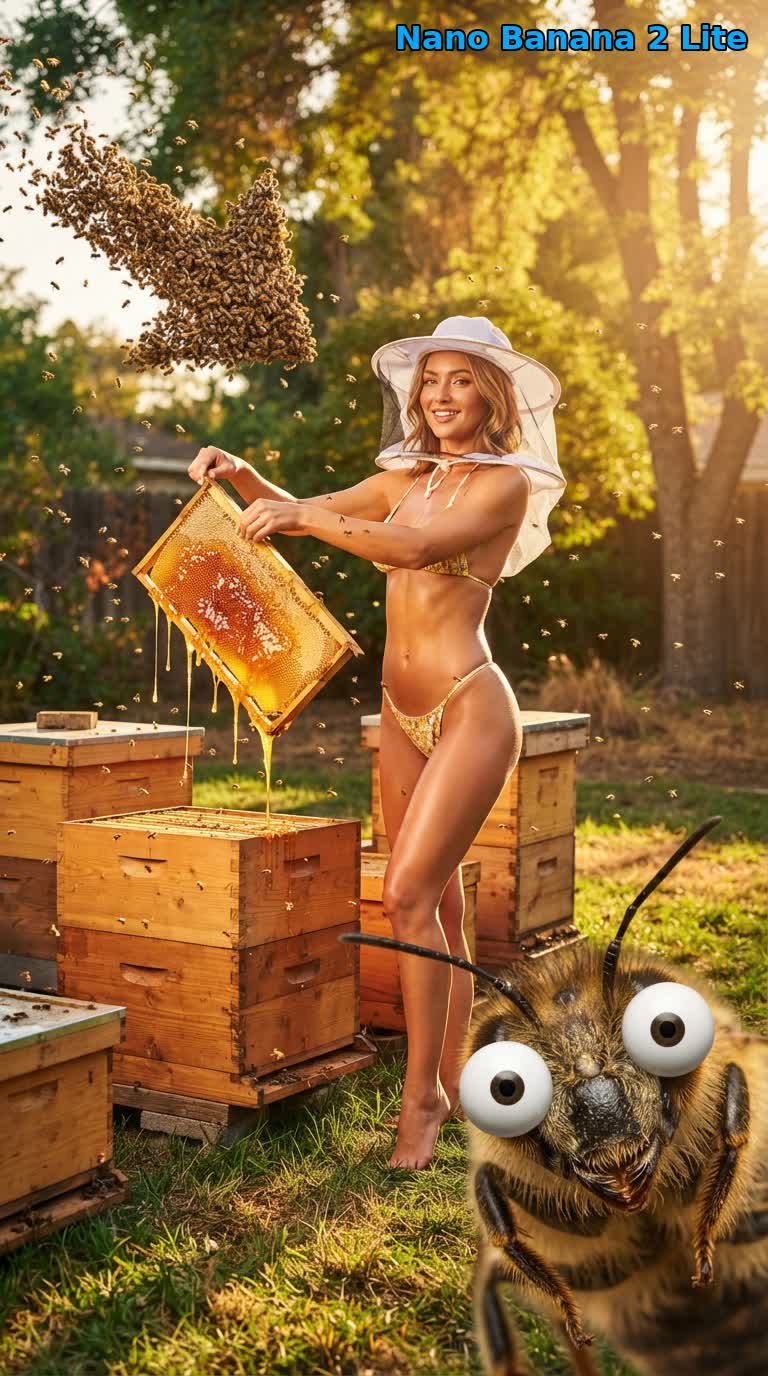
Nano Banana 2 Lite โมเดลเริ่มต้น (ที่มา): พรอมต์คนเลี้ยงผึ้งจากบทความเปรียบเทียบสามโมเดลของเรา สร้างที่ 9:16 ด้วยโมเดลที่เร็วที่สุดในสามตัว
คำถามที่พบบ่อย
- Nano Banana 2 มี API ไหม? ผ่าน useapi.net มี ใน Google Flow API
nano-banana-2สร้างภาพด้วย Nano Banana 2.1 ซึ่งเป็นเวอร์ชันที่ Google Flow ใช้ ทำงานได้กับทุกแพ็กเกจ Google AI หรือบัญชีฟรี และไม่มีค่าบริการต่อภาพ ส่วน Nano Banana 2 (Gemini 3.1 Flash Image) บน Gemini API ทางการของ Google ราคาภาพละ $0.067 ที่ความละเอียด 1K (ข้อมูล ณ พฤศจิกายน 2026) เป็น REST endpoint มาตรฐาน ไม่ต้องมีโปรเจกต์ Cloud - Nano Banana Pro มี API ไหม? ผ่าน useapi.net มี Nano Banana Pro (Gemini 3 Pro Image) ทำงานเป็น
nano-banana-proบน endpoint POST /images คำขอแบบซิงโครนัสครั้งเดียวได้ภาพกลับมาสูงสุดสี่ภาพ โดยไม่มีค่าบริการต่อภาพ ขณะที่ Gemini API ทางการของ Google คิดภาพ Pro ภาพละ $0.134 (ข้อมูล ณ พฤศจิกายน 2026) - API ใช้โมเดลไหนเป็นค่าเริ่มต้น? บน useapi.net ค่าเริ่มต้นคือ
nano-banana-2-lite(Gemini 3.1 Flash-Lite Image) ไม่ว่าจะมีภาพอ้างอิงหรือไม่ เปลี่ยนได้ในแต่ละคำขอโดยตั้งmodelเป็นnano-banana-2(Nano Banana 2.1) หรือnano-banana-pro(Gemini 3 Pro Image คุณภาพสูงสุด) ทั้งสามโมเดลรับภาพอ้างอิงได้สูงสุด 10 ภาพ และอัปสเกลเป็น 2K/4Kได้ บทความ Nano Banana 2 Lite vs 2.1 vs Pro แสดงผลของทั้งสามโมเดลด้วยพรอมต์เดียวกัน - Google Flow ยังมี Imagen 4 อยู่ไหม? บน useapi.net model id
imagen-4ยังใช้ได้ โค้ดเดิมจึงทำงานต่อได้ แต่ Google นำ Imagen ออกจาก Google Flow ในเดือนกรกฎาคม 2026 คำขอเหล่านั้นจึงสร้างภาพด้วยnano-banana-2-liteซึ่งเป็นโมเดลภาพเริ่มต้นของ Google Flow ตั้งแต่นั้นมา หากต้องการโมเดลอื่น ให้ตั้งmodelเป็นnano-banana-2หรือnano-banana-pro - ต้องใช้ captcha หรือโปรเจกต์ Google Cloud ไหม? ผ่าน useapi.net คุณไม่ต้องมีโปรเจกต์ Google Cloud และไม่ต้องแก้ captcha เอง Google Flow ขอ reCAPTCHA ทุกครั้งที่สร้างภาพ และ worker ของ useapi.net จะแก้ให้อัตโนมัติ บัญชี Google Flow แรกของคุณได้สิทธิ์แก้ฟรี 300 ครั้งด้วยคีย์ AntiCaptcha, CapSolver และ EzCaptcha ของเราเอง หลังจากนั้นคุณเพิ่มคีย์ของผู้ให้บริการของคุณเองได้ด้วย POST /accounts/captcha-providers สคริปต์ในคู่มือนี้ไม่ได้ส่ง
captchaToken
สรุป
ติดต่อเราได้ที่  Discord Server หรือ
 Telegram Channel สำหรับทุกคำถามและข้อสงสัยด้านการใช้งาน
ดูตัวอย่างโค้ดได้ใน GitHub repo ของเรา
เผยแพร่ที่อื่นด้วย
เผยแพร่บน dev.to (ภาษาอังกฤษ) และแชร์บน Bluesky ด้วย
เริ่มใช้งาน API
การสมัครสมาชิกเดือนละ $15 ใช้ได้กับทุก API บน useapi.net ใช้ Token เดียวกับทุกบริการ เชื่อมบัญชีของคุณเองได้สูงสุด 3 บัญชีต่อบริการ แต่ละบัญชีใช้แพ็กเกจของเว็บไซต์นั้นเอง ส่วน useapi.net ดูแล REST API การกระจายโหลด และการ polling ให้ ต้องการบัญชีมากกว่านี้? สมัครเพิ่มแต่ละครั้งเดือนละ $10 และได้เพิ่มอีก 3 บัญชีต่อบริการ
สมัครสมาชิก — $15/เดือน ชำระด้วยคริปโต
ไม่มีบัตรเครดิตที่ใช้จ่ายต่างประเทศได้? สมัครด้วยคริปโตก็ได้ (การชำระด้วยคริปโตขอคืนเงินไม่ได้) ดูราคาและแพ็กเกจสำหรับปริมาณมากได้ที่หน้าการสมัครสมาชิก ถ้าชำระผ่าน Stripe ขอคืนเงินเต็มจำนวนได้ภายใน 14 วันหลังซื้อครั้งแรก หากสร้างงานสำเร็จไม่ถึง 50 ครั้ง สมัครไว้แล้ว? เปลี่ยนจำนวนได้ที่ Stripe Customer Portal โดยไม่ต้องซื้อใหม่